Calendar
With the Calendar module in BostelCRM, you can efficiently manage your time by scheduling and viewing Meetings, Calls, and Tasks. Additionally, users in the same work group can share their Calendar with others, making it possible for them to see their upcoming activities. If a user is a participant or has been assigned to a task, the corresponding activity will be displayed in the Calendar module. To access the Calendar, you can either use the Module List menu located in the top navigation menu or click the Calendar button in the Bottom Navigation menu.
Calendar Actions
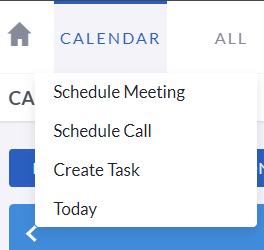
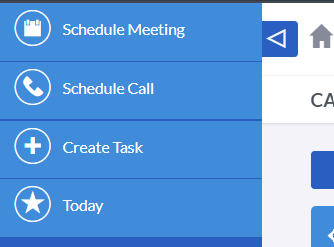
The Calendar actions can be accessed either from the Calendar module menu drop down or via the Sidebar. The following are the available Calendar actions:
-
Scheduling Mettings
You can create a new Meeting record by opening a new form in the Edit View of the Meetings module. The created record will be displayed on the Calendar.
-
Scheduling Calls
You can create a new Call record by opening a new form in the Edit View of the Call module. The created record will be displayed on the Calendar.
-
Create Task
You can create a new Task record by opening a new form in the Edit View of the Tasks module. The created record will be displayed on the Calendar.
-
Today
By clicking on this option, you will be redirected to the Week format of the Calendar for the current day.
In addition, you can create an activity directly on the Calendar by clicking a single block or selecting multiple blocks corresponding to the duration of the activity. Afterward, the Create Activity pop-up opens.
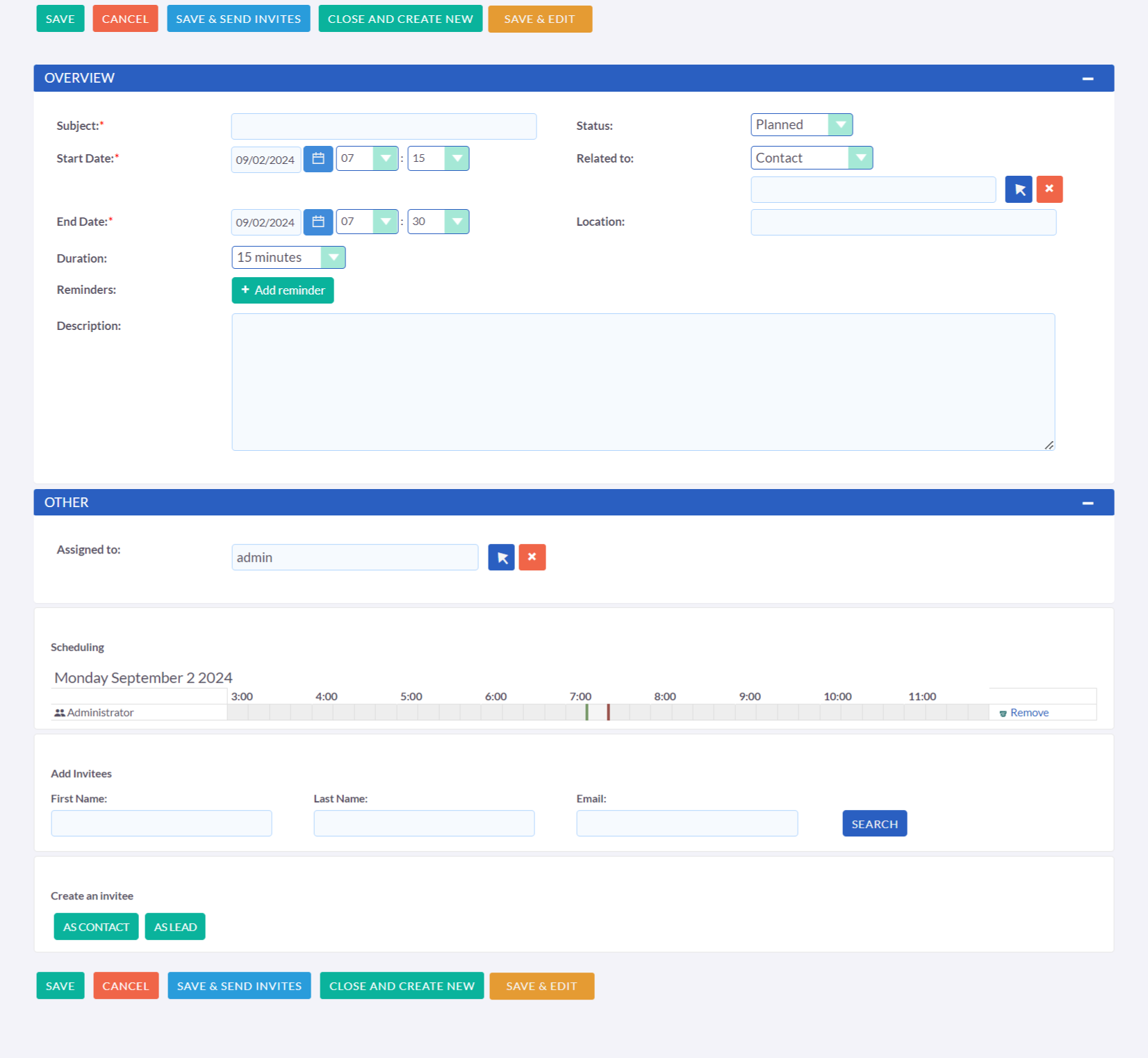
This allows you to quickly schedule a meeting or log a call.
Calendar Navigation
Upon accessing the calendar, you will be directed to the view of the current week with the present day being highlighted.
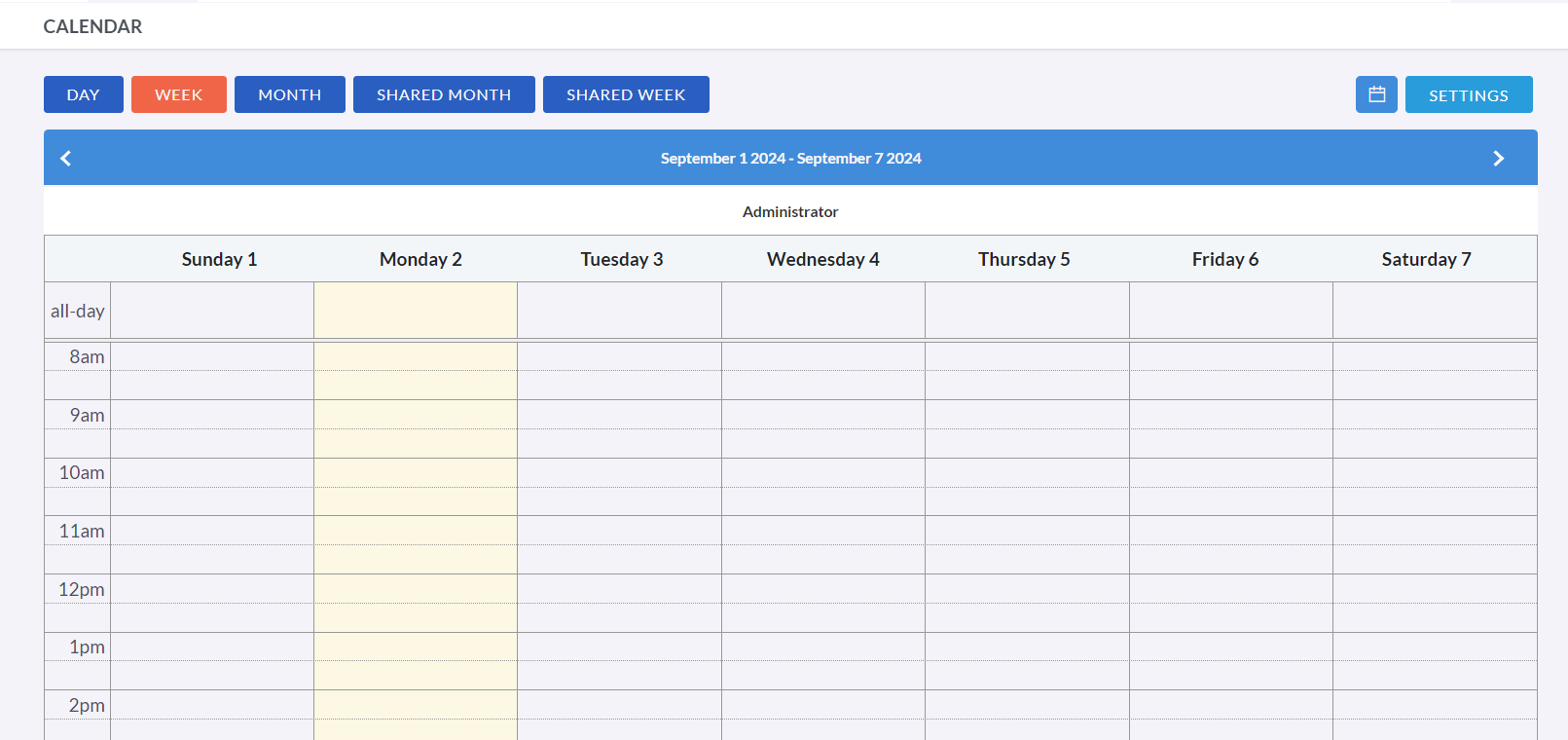
At the top of the calendar page, there are buttons that let you switch between day, week, and month views. You can also access the shared week and shared month views to see the calendar of other members in your work group.
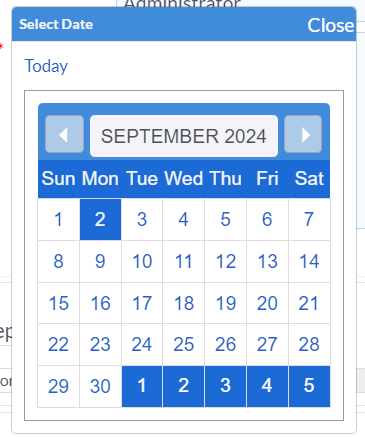
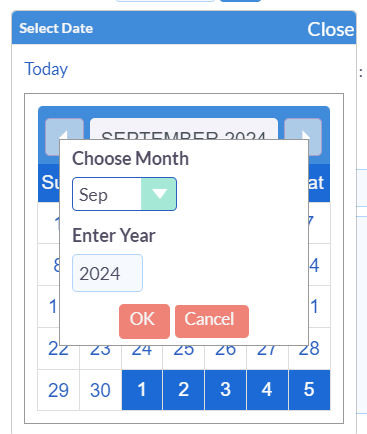
In addition, there is a quick access calendar button that allows you to easily switch to different months or years. If you open this mini calendar, you can navigate directly to different days of the month by clicking on them, change months by clicking the forward and back arrows, or select specific months and type in the year you want to navigate to using another selection pop-up.
Calendar Settings
The Settings button is located here as well, which allows you to customize the calendar according to your preferences.

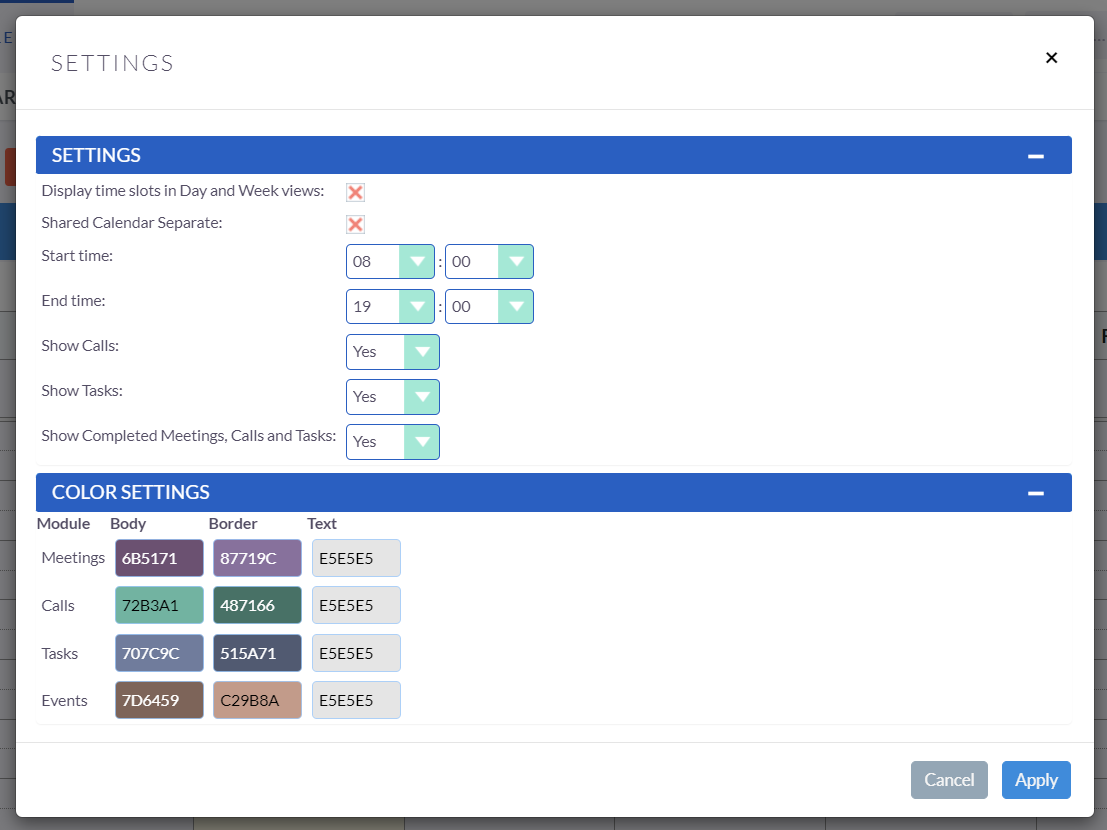
By clicking on the Settings button, you can open the calendar setting pop-up window, which enables you to modify the displayed hours of the calendar in quarter-hour increments, specify the types of events to be displayed, and customize the colors of the boxes, borders, and text for the different calendar items.