Contacts
A Contact in BostelCRM can refer to various entities, such as an individual who could be a client or a Lead (potential client), or an Opportunity (qualified prospect). It could also be a business or a shipping department of a supplier. Essentially, any entity that requires the storage of phone numbers, email addresses, addresses, or other information can be considered a Contact. To access the Contacts module, one can either navigate to the Module List menu on the top navigation menu or use the Contacts button on the Bottom Navigation menu.
Contacts Actions
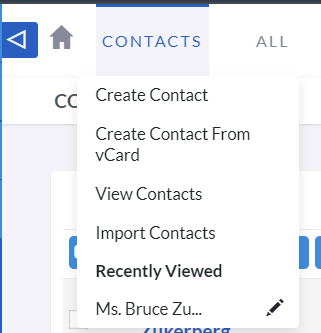
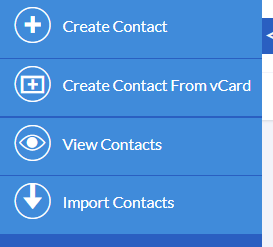
Once you log in to the system, you'll have access to numerous configuration options. To view or modify your preferences, simply click on your user name located on the top right of the navigation menu.
-
Create Contact
A new form is opened in Edit View to allow you to create a new Contact record.
-
View Contact
You will be redirected to the List View of the Contacts module, enabling you to search and list Contact records.
Managing Contacts
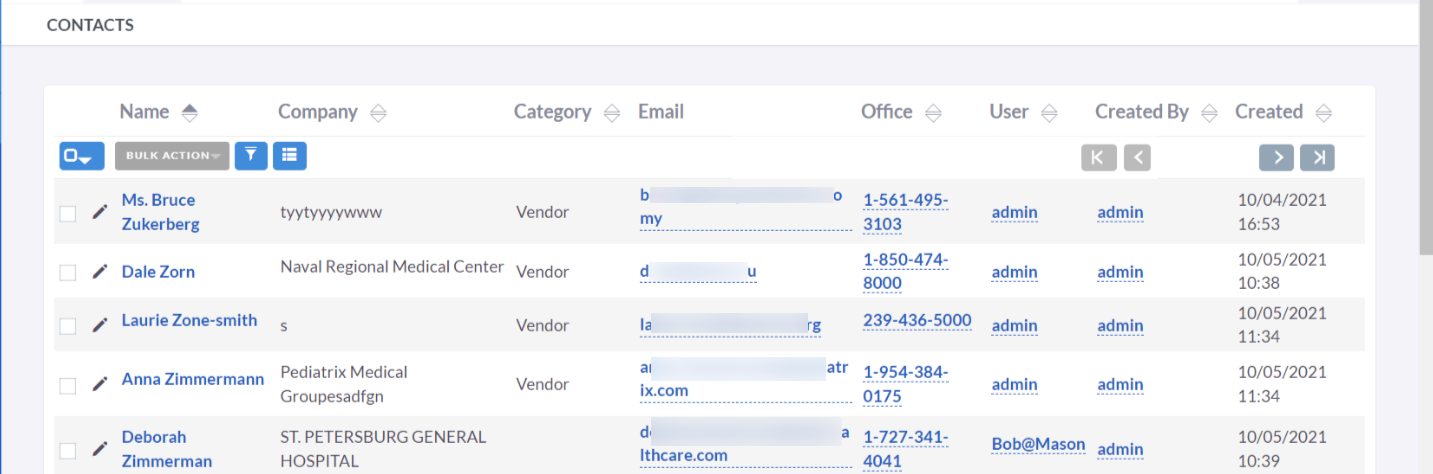
- Click on any sortable column title to sort the records in the Contacts List View either in ascending or descending order.
- To search for a Contact, please refer to the Search section of this user guide.
- To view a Contact's details, select their name in the List View. This will open the record in Detail View.
- To edit a Contact's details, choose Edit from the Actions menu in the Detail View or click the pencil/edit button on the List View. After making the necessary changes, click Save to save the changes.
- To duplicate a Contact, select Duplicate from the Actions menu in the Detail View, then modify and save the duplicated record.
- To delete a Contact, navigate to their Detail View and select Delete from the Actions menu.
- To track all changes made to audited fields, click the View Change Log button on the Contact's Detail or Edit View.
Creating Contacts
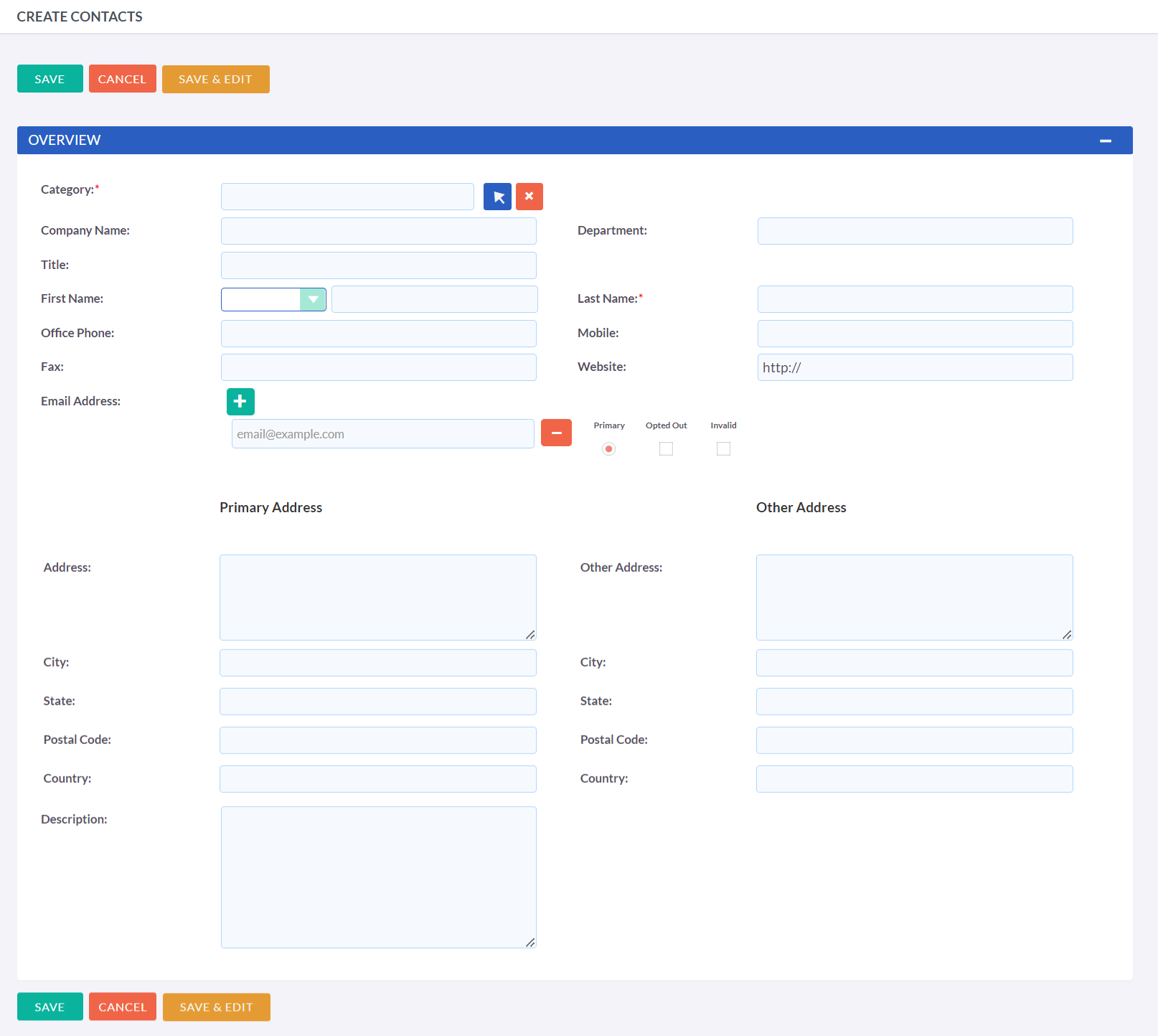
Contacts Record Actions
When creating or editing a contact record, you have the following options:
-
Save
This button will save the data and redirect you to the list view.
-
Save & Edit
This button will save the data and keep you in the same record for further editing.
-
Cancel
This will discard any changes made and redirect you to the previous page.
The process of creating contacts is quite simple, and the available data
blocks should be easy to understand without much explanation.
Fill all the details and Save it