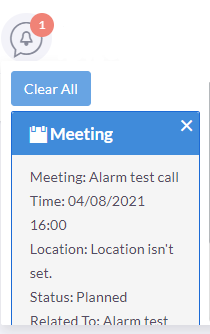
Desktop Notification
Notifications serve as reminders for your scheduled activities and events, ensuring that you don't miss a crucial sales call or meeting.
Enabling Desktop Notification
To enable desktop notifications, you can access the 'Advanced' tab within your user preferences. This will activate desktop notifications solely for that particular browser on that specific computer. You have the option of enabling desktop notifications either for that browser session only or always. However, if you use multiple browsers and computers, you will need to enable desktop notifications on each of them separately.
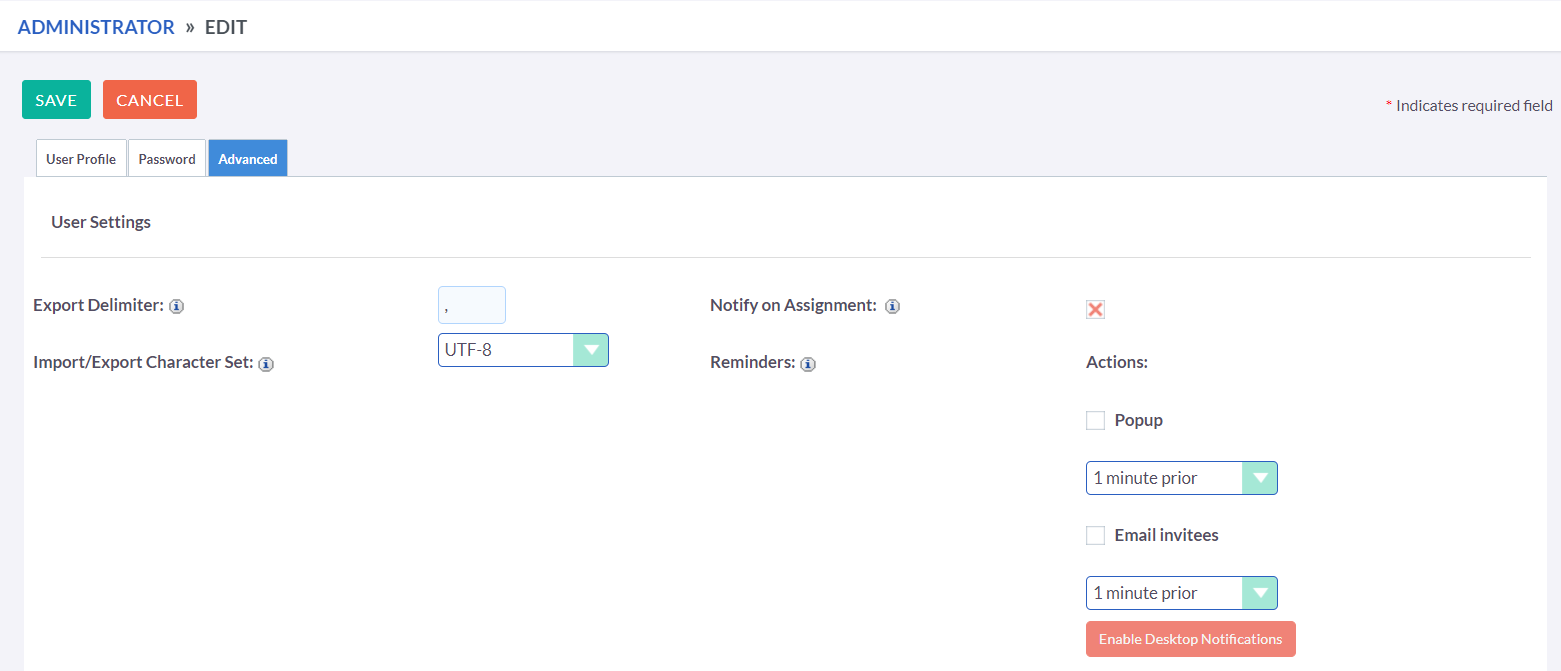
After enabling desktop notifications, you will receive notifications for Calendar events, including
-
Meetings
Meetings you have been invited to that have popup reminders set.
-
Calls
Calls you have been invited to that have popup reminders se
Managing Desktop Notification

If there are no notifications available, the notification count will display as blank, indicating that there are currently no notifications to view.

If you are away from your computer or fail to click on a desktop notification when it appears in the browser, the notifications will be added to the notification list. The notification list is accessible from the main navigation bar, which displays a count of any existing notifications.
To manage your notifications, click on the notification icon, which will reveal any existing notifications. You can click on a notification to access the related record, or use the small 'x' icon to clear individual notifications. Alternatively, you can click the 'Clear All' button to remove all notifications at once.