Invoices
Creating an Invoice
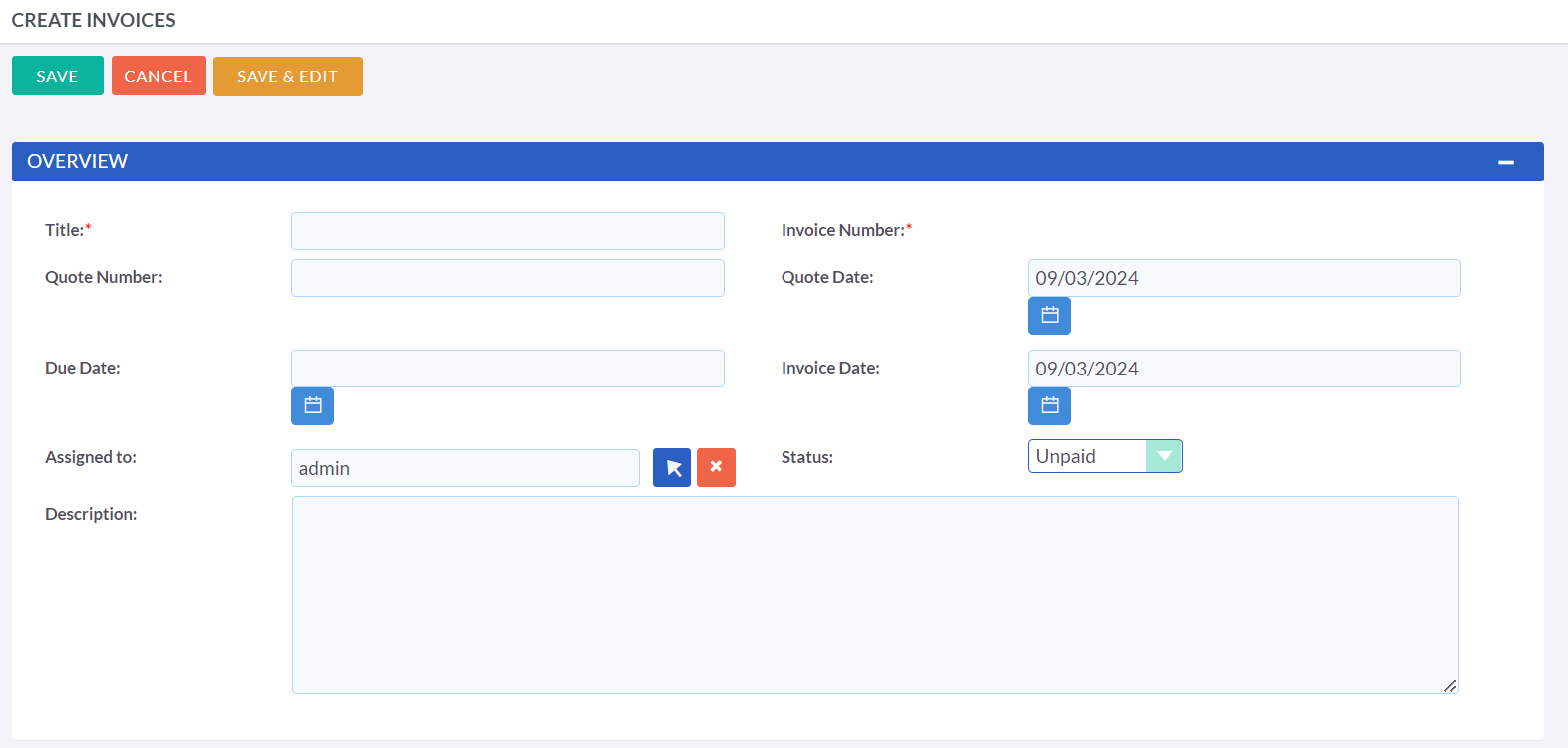
The process of creating an Invoice record closely resembles that of creating a Quote record. To initiate the creation of an Invoice, you can either select 'Create Invoice' from the actions bar within the Invoices module, or click the 'Add' button located at the bottom. The first panel of the creation process allows you to specify crucial details about the Invoice, such as the Status and Due Date.
Invoice Record Actions
When creating or editing a Invoice record, you have the following options:
-
Save
This button will save the data and redirect you to the list view.
-
Save & Edit
This button will save the data and keep you in the same record for further editing.
-
Cancel
This will discard any changes made and redirect you to the previous page.
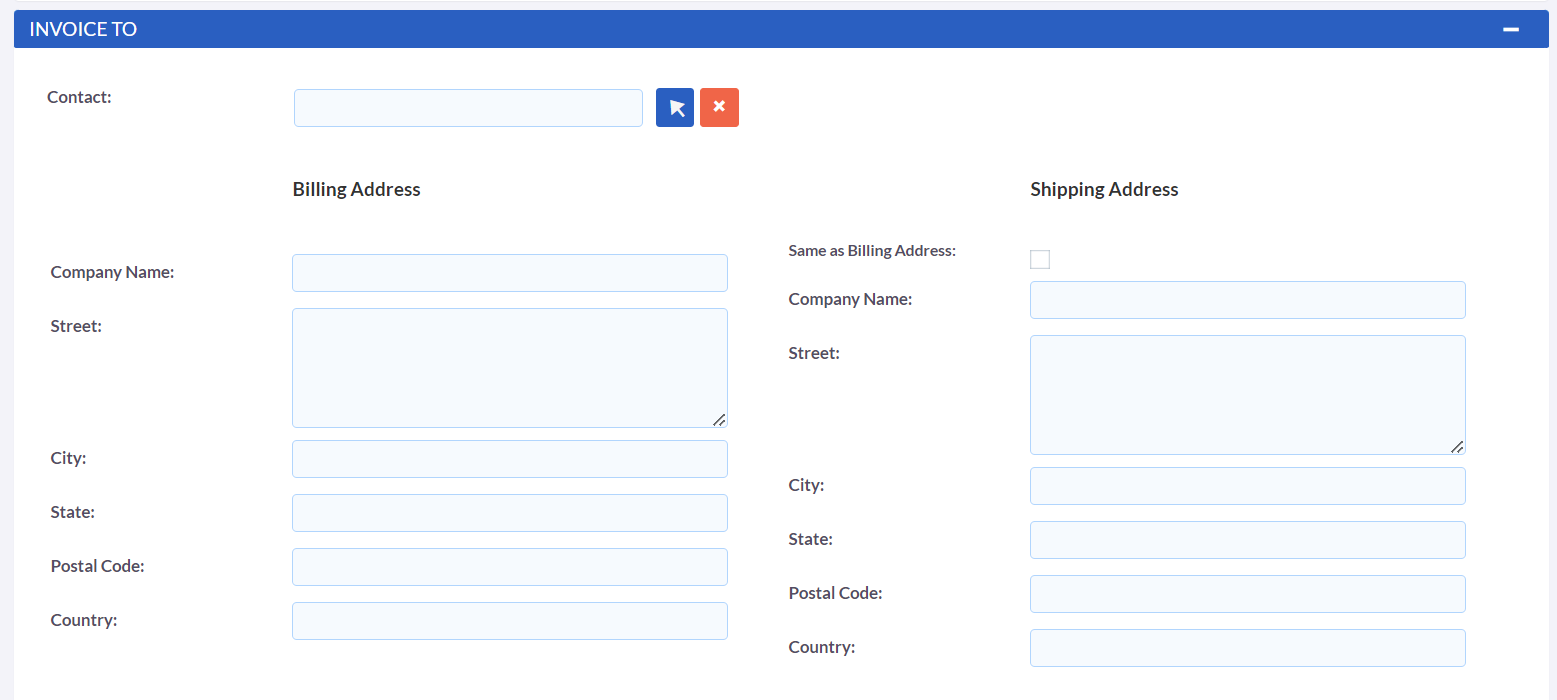
The second panel focuses on the recipient of the Invoice from the Contacts module. Upon selecting the appropriate Contact, the Billing Address is automatically retrieved and populated into the relevant fields of the Invoice record. In the event that the Shipping Address matches the Billing Address, clicking the "Same As Billing Address" button will efficiently duplicate the information into the relevant Shipping Address fields.
Line Items with Groups
Users have the ability to include Groups and Line Items in their
Invoices via this module. The process is identical to that of creating
Groups and Line Items for Quotes.
Please refer to the Quotes section for details on how to create Groups
and Line Items.
Sending Invoices
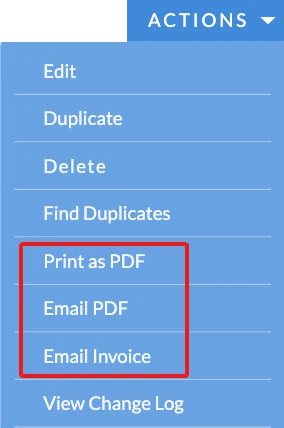
To generate output for an Invoice, you can select one of the following three buttons from the Invoice Detail View. These three methods are:
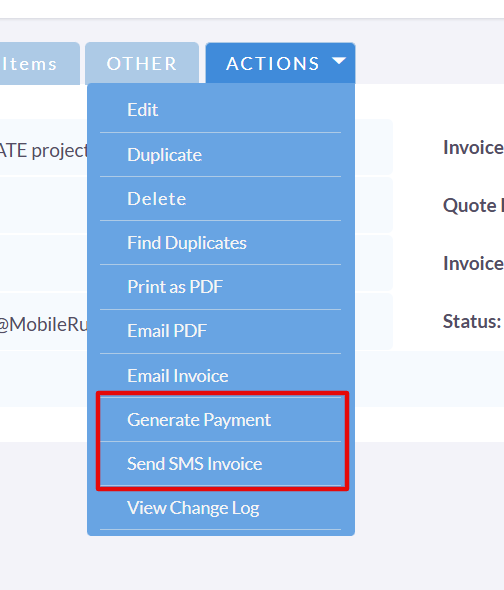
To generate a payment for an invoice, you will first need to select an email template. After choosing the template, you will be automatically redirected to the POS page to complete the process.
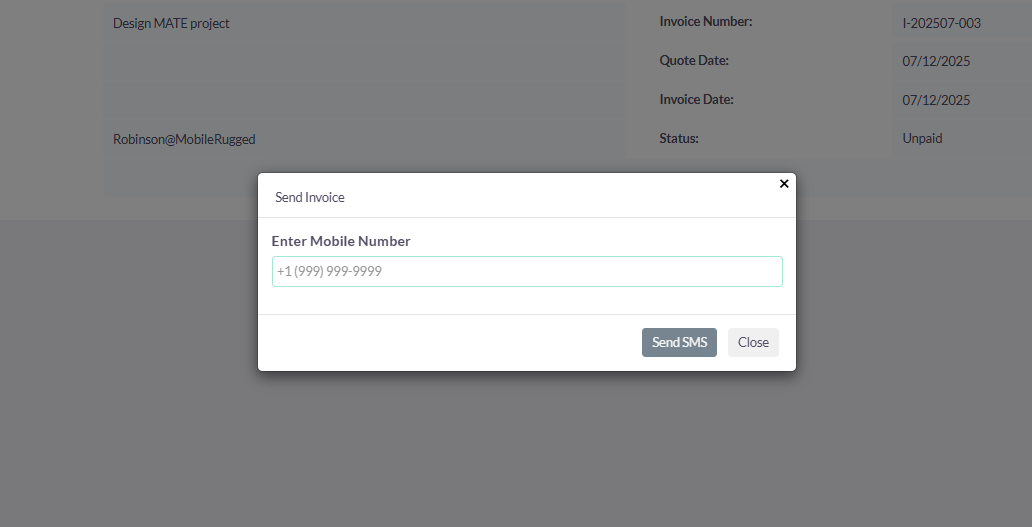
Send SMS Invoice: You can choose the SMS template, and a pop-up will open where you can enter a number to send the SMS invoice.
-
Print as PDF
Allows you to select a template and download or save a PDF of the Invoice.
-
Email PDF
Allows you to select a template and then directs you to the email client 'Compose' screen. The Invoice PDF will be attached to the email and the email will be addressed to the related Contact of the Invoice. This allows you to fill out the email body.
-
Email Invoice
This directs you to the email client 'Compose' screen. The email will be addressed to the related Contact of the Invoice. There will be no attachment and the Invoice will be displayed within the body of the email.