Meetings
The Meetings module in BostelCRM, similar to the Calls module, enables Users to create Meeting records for any Meetings they have participated in. With the Meeting scheduler, Users can invite attendees, send email invitations, set reminders, reschedule meetings, and link them to other modules such as Contacts, Tasks, Opportunities, and more. This module offers additional useful features that aid Users in planning and managing their Meetings. Access the Meetings module by selecting it from the Module List menu on the top navigation menu or by using the Meetings button on the Bottom Navigation menu.
Meetings Actions
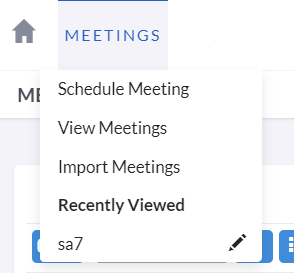

The Meetings actions can be accessed from either the Meetings module menu dropdown or the Sidebar and include:
-
Schedule Meetings
Upon selecting the Edit View, a new form will appear, enabling you to create a new Meeting record.
-
View Meetings
You will be directed to the List View of the Meetings module, which enables you to search for and list Meeting records.
Managing Meetings
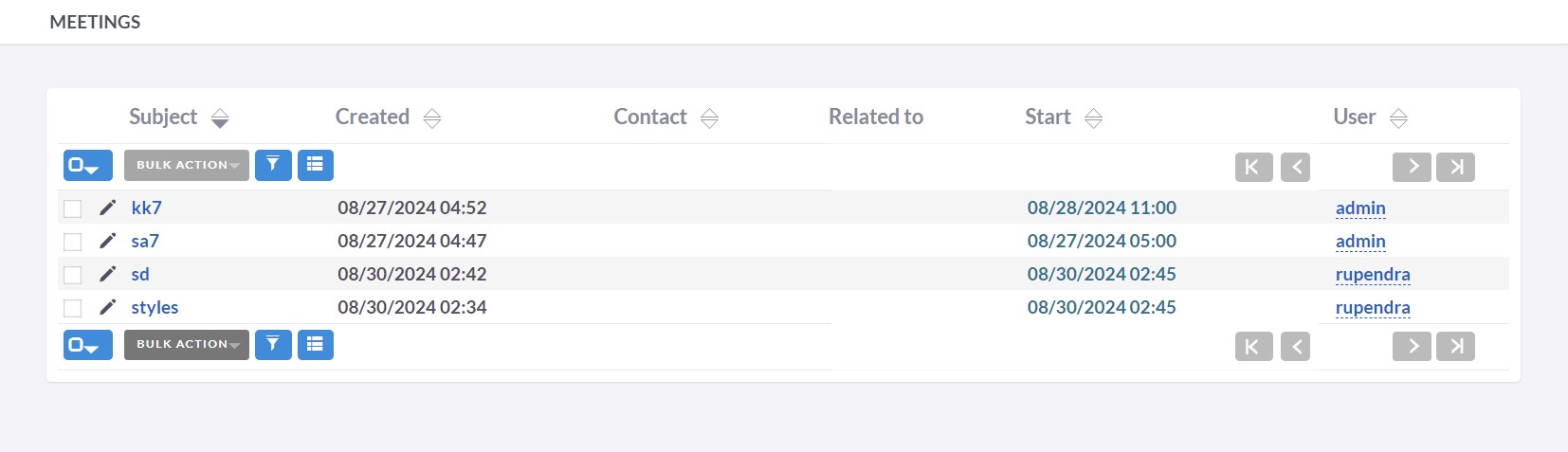
- Click on any sortable column title in the Meetings List View to sort records in ascending or descending order.
- Refer to the Search section of the user guide to search for a specific Meeting.
- Click on the Meeting Subject in the List View to access the details of a specific Meeting in the Detail View.
- To duplicate a Meeting, select the Duplicate button in the Detail View, and then save the duplicated record.
- To close a Meeting, select the 'x' icon in the Meetings List View or use the Close button on the Detail View of a Meeting. Alternatively, use the Close and Create New button, which will close the current Meeting and redirect you to the Edit View to create a new record.
- To Reschedule a Meeting, edit the Start Date & Time field. One practical method is to double-click on it to inline-edit it directly from the Detail View of a Meeting.
- To delete a Meeting, navigate to the Detail View and select the Delete button in the Actions tab.
- To modify Meeting details, use the Edit icon in the List View or select the Edit button in the Detail View's Actions tab, make the necessary changes, and then click Save.