Quotes
Creating a Quote
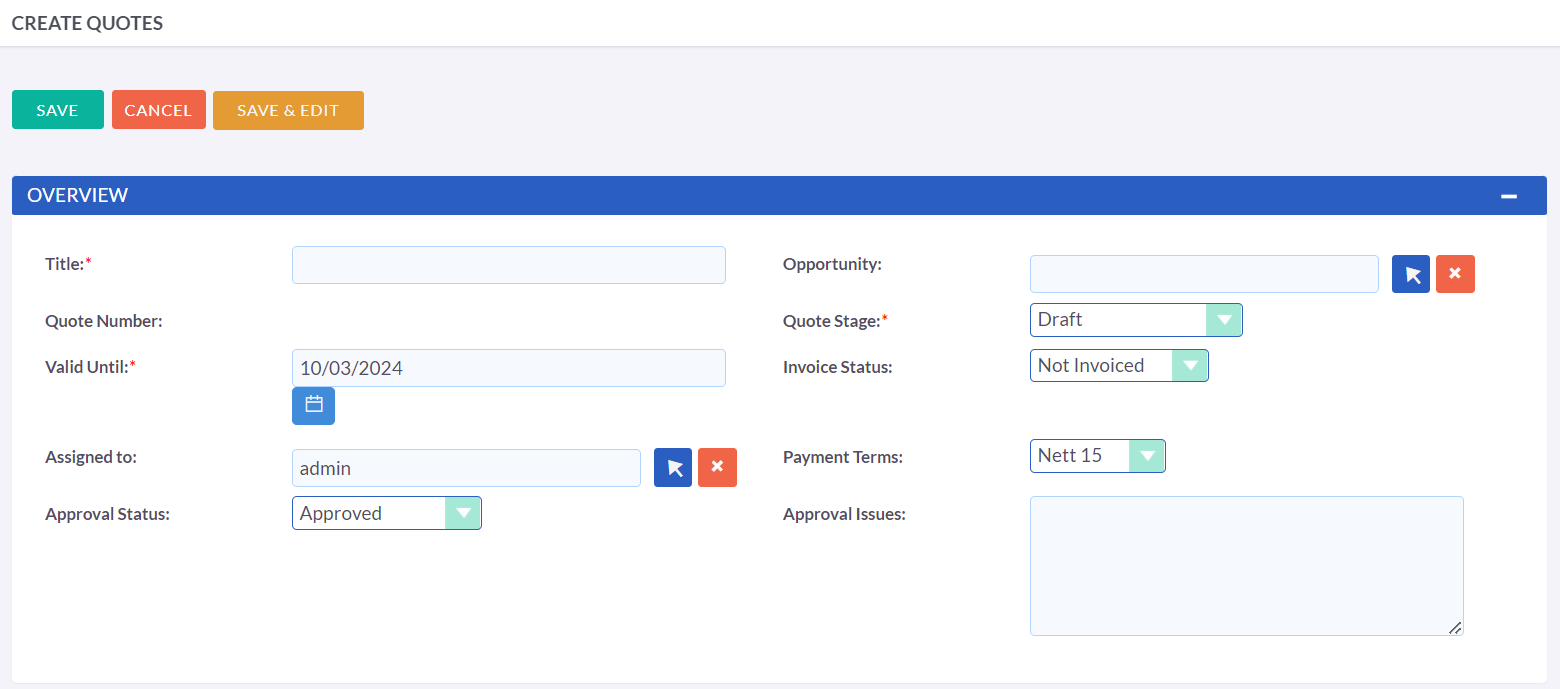
To create a Quote, navigate to the Quotes module and click either the "Create Quote" button located in the Actions bar or the "Add" button at the bottom. The initial panel will prompt you to input information such as the Quote Title, related Opportunity, Stage, and Payment Terms. Note that the Quote Number field will be automatically calculated.
Quote Record Actions
When creating or editing a Quote record, you have the following options:
-
Save
This button will save the data and redirect you to the list view.
-
Save & Edit
This button will save the data and keep you in the same record for further editing.
-
Cancel
This will discard any changes made and redirect you to the previous page.
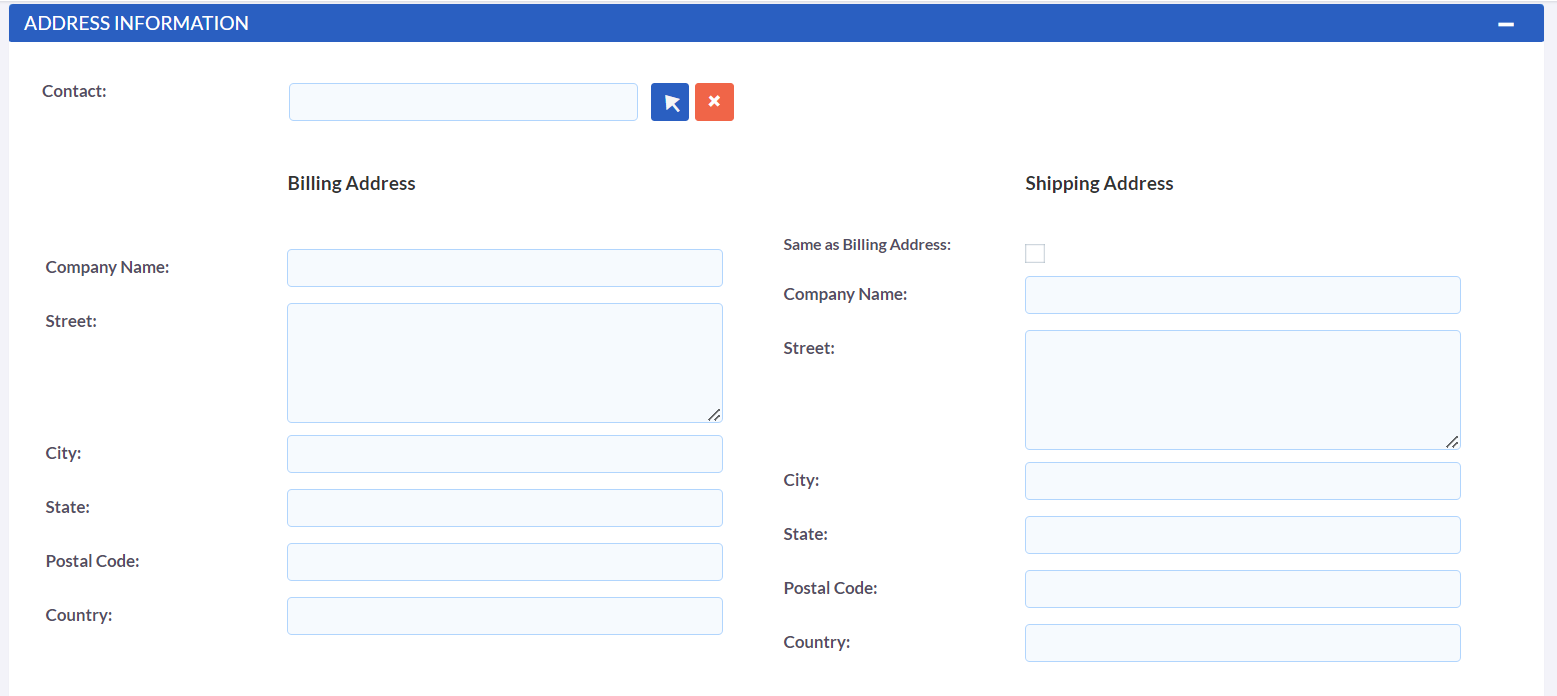
In the second panel, you can identify the recipient of the Quote from the Contacts module. Once you have selected the appropriate Contact, the Billing Address associated with that Contact will be dynamically populated into the corresponding fields on the Quote record. Additionally, if the Shipping Address is identical to the Billing Address, clicking the "Same As Billing Address" button will automatically transfer the information into the Shipping Address fields as well.
Line Items with Groups
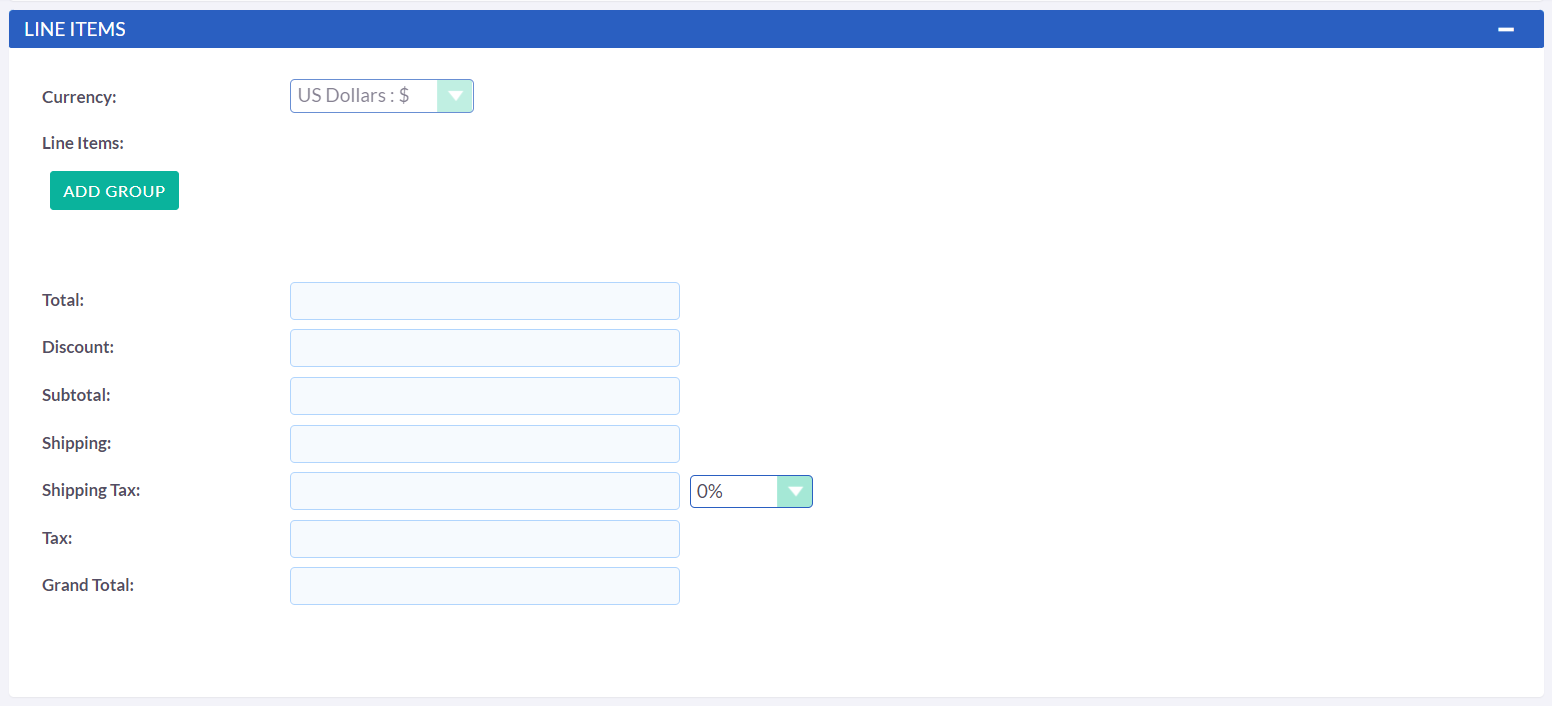
The third panel provides the option to add Quote Groups and Line Items. A Group consists of a collection of Line Items, and has its own corresponding Group Total. A Line Item can either be a Product Line or a Quick Item. To create a new Quote Group, click on the "Add Group" button.

Clicking the "Add Group" button will create a new Group, which will prompt you to input a Group Name and add either a Product Line or a Quick Item. The corresponding Group Totals will be displayed as well.
To add a Product Line, select the "Add Product Line" option. This will enable you to quote for products from the Products module.

To select a Product, you can either type in the Product or Part Number
field and a list of results will appear, similar to any related field.
Alternatively, you can click the arrow button located next to the Part
Number field, which will open a pop-up window displaying a list of
available Products for selection.
After selecting a Product, the List, Sale Price, and Total fields will
populate automatically. You can then modify the Quantity, add Discounts
(either Percentage or Amount), and adjust the Tax percentage as
necessary. These changes will affect the Sale Price, Total Price, and
Group Total fields.
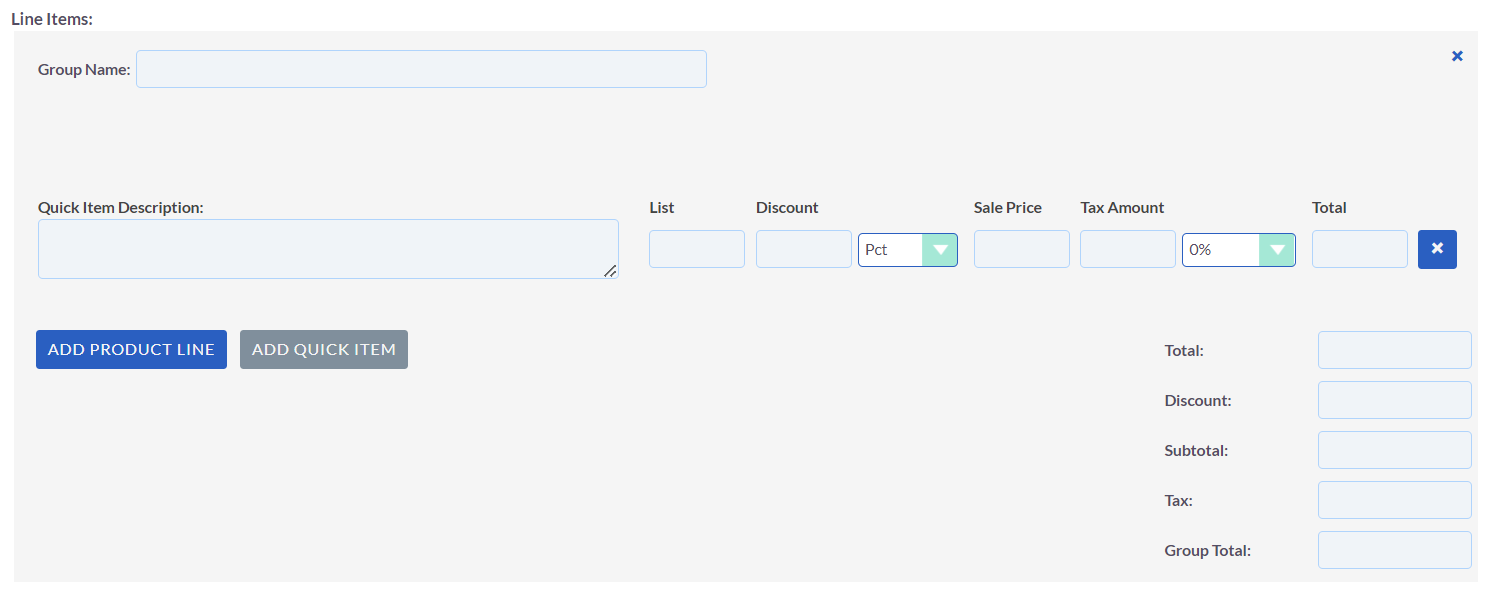
To add a Quick Item, click on "Add Quick Item". This option enables you
to quote for services and other miscellaneous items.
For Quick Items, you need to specify the List price, which will
automatically populate the Sale Price field. Tax and Discounts can be
added similarly to the Product Line. A Grand Total will be calculated
for each Group.
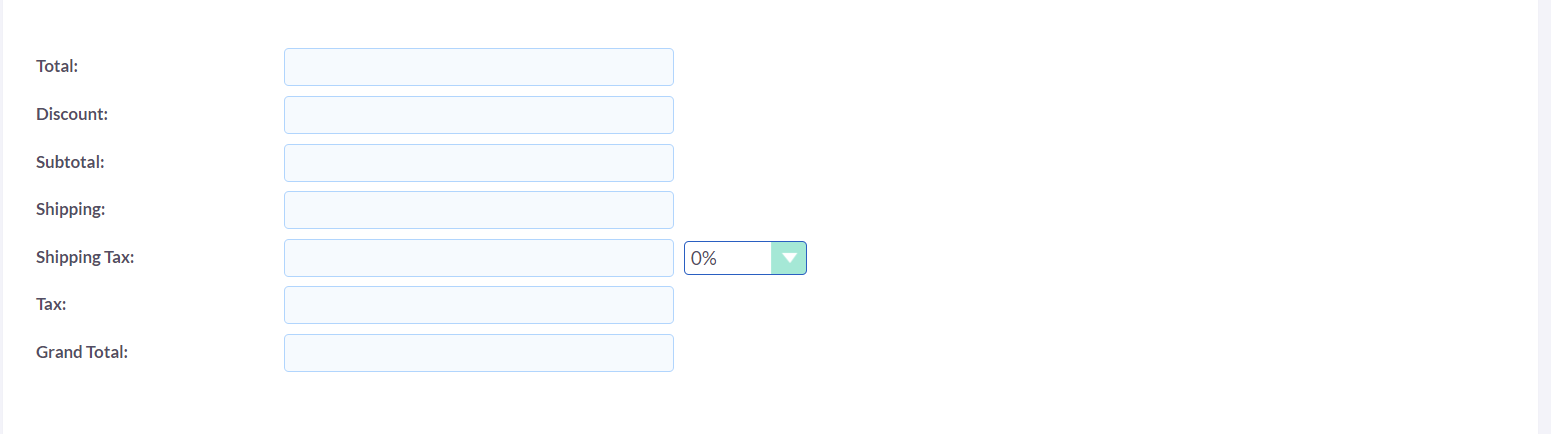
In addition to the Group Totals, a Grand Total will be calculated for
all Groups combined.
The Shipping field enables you to add the cost of shipping, while the
Shipping Tax field allows you to add tax to this value. After you have
compiled the Quote, click 'Save' to save it.
Sendign Quotations

To generate an output for the Quote, you can select one of the following three buttons from the Quote Detail View. These three methods are:
-
Print as PDF
Allows you to select a template and download or save a PDF of the Quote.
-
Email PDF
Allows you to select a template then directs you to the email client 'Compose' screen. The Quote PDF will be attached to the email and the email will be addressed to the related Contact of the Quote. This allows you to fill out the email body.
-
Email Quotation
This directs you to the email client 'Compose' screen. The email will be addressed to the related Contact of the Quote. There will be no attachment and the Quote will be displayed within the body of the email.
Convert to Invoice
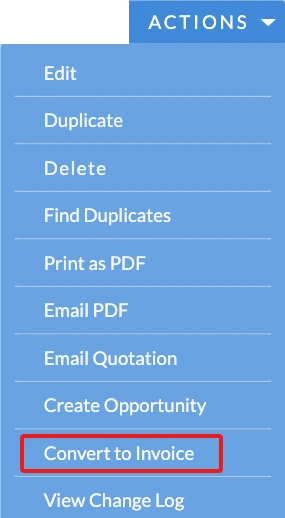
By clicking the 'Convert to Invoice' button on the Quote Detail View
in the Quote module, you can convert a Quote to an Invoice.
Users will be directed to the Edit View of an Invoice record through
this feature. The fields will be automatically filled in based on the
corresponding Quote and Line Items will be duplicated. To create the
Invoice, simply click the 'Save' button. The status of the Quote will
be changed to 'Invoiced' when it is converted to an Invoice.