Reschedule
Rescheduling a Call
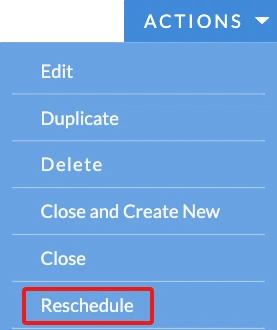
To reschedule a Call, you can click the 'Reschedule' button under the Actions tab on the Detail View of a Call which has been defined as Outbound and Planned.
Defining the Details
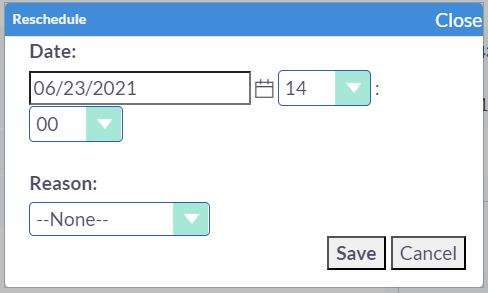
When you click on the Reschedule button, a popup or dialogue box will appear that allows you to specify the new date and time for the rescheduled call.
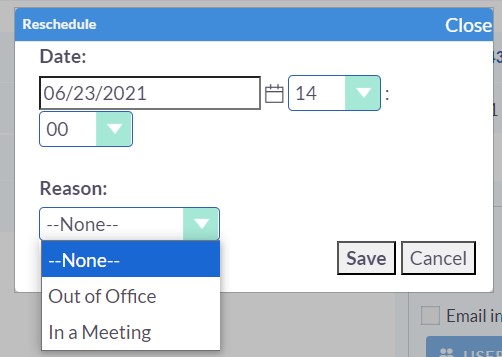
In addition, you have the option to choose a reason from the drop-down list for why the call was incomplete or unsuccessful. Once you have specified all the necessary details, simply click on the "Save" button to save the call.
Tracking History

After you have saved the changes to the call's date and time, it will be automatically rescheduled accordingly. To see the history of all rescheduled calls, go to the Detail View of the call and click on the "Reschedule" tab.