Sales
The sales modules includes several modules that enable you to handle the sales processes that occur after an opportunity has been identified. These modules allow you to manage activities such as generating quotes and creating invoices. The following modules provide this functionality:
- Product Categories
- Products
- PDF Templates
- Quotations - See Quotes page
- Invoices - See Invoices page
Product Module
In order to enable users to choose product lines while creating quotes and invoices, the Products module can be used to create Product records. The Products module allows users to specify various details about the product such as its name, part number, category, type, and more.
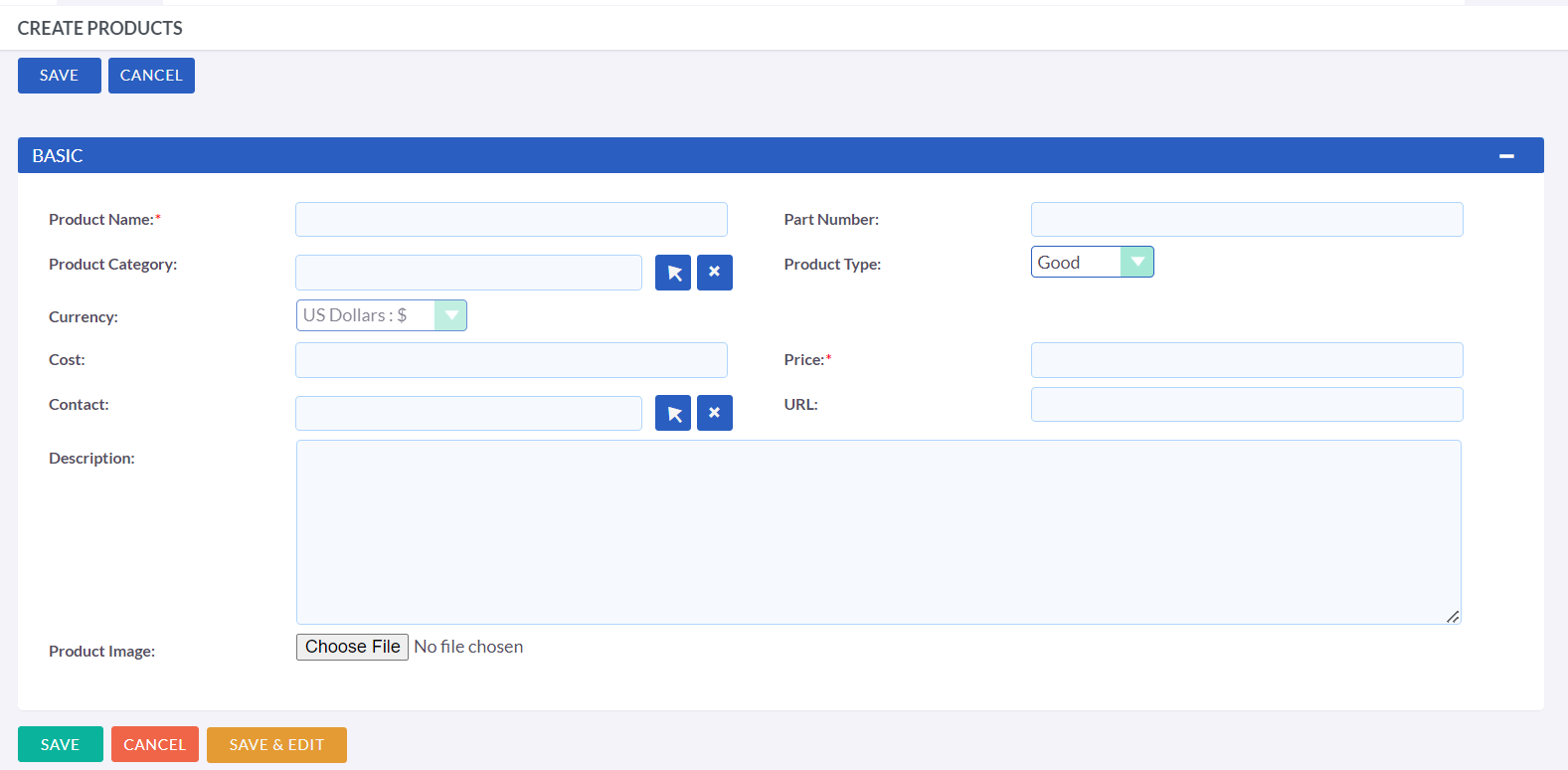
In addition to specifying product details, the Products module also enables users to set a cost and selling price for the product. The selling price will be utilized during the quoting process. Users can also associate a related contact with the product, which represents the supplier's point of contact for that particular product. Additionally, users can upload an image of the product and specify a URL to the product page on their website.
Product Record Actions
When creating or editing a Product record, you have the following options:
-
Save
This button will save the data and redirect you to the list view.
-
Save & Edit
This button will save the data and keep you in the same record for further editing.
-
Cancel
This will discard any changes made and redirect you to the previous page.
Product Categories Module
With the Product Categories module, users can organize products into a hierarchical structure based on categories. To create a Product Category record, users can access the Product Categories module located under Settings in the User menu and click either the 'Create Product Categories' button in the action bar or the "ADD" button at the bottom.
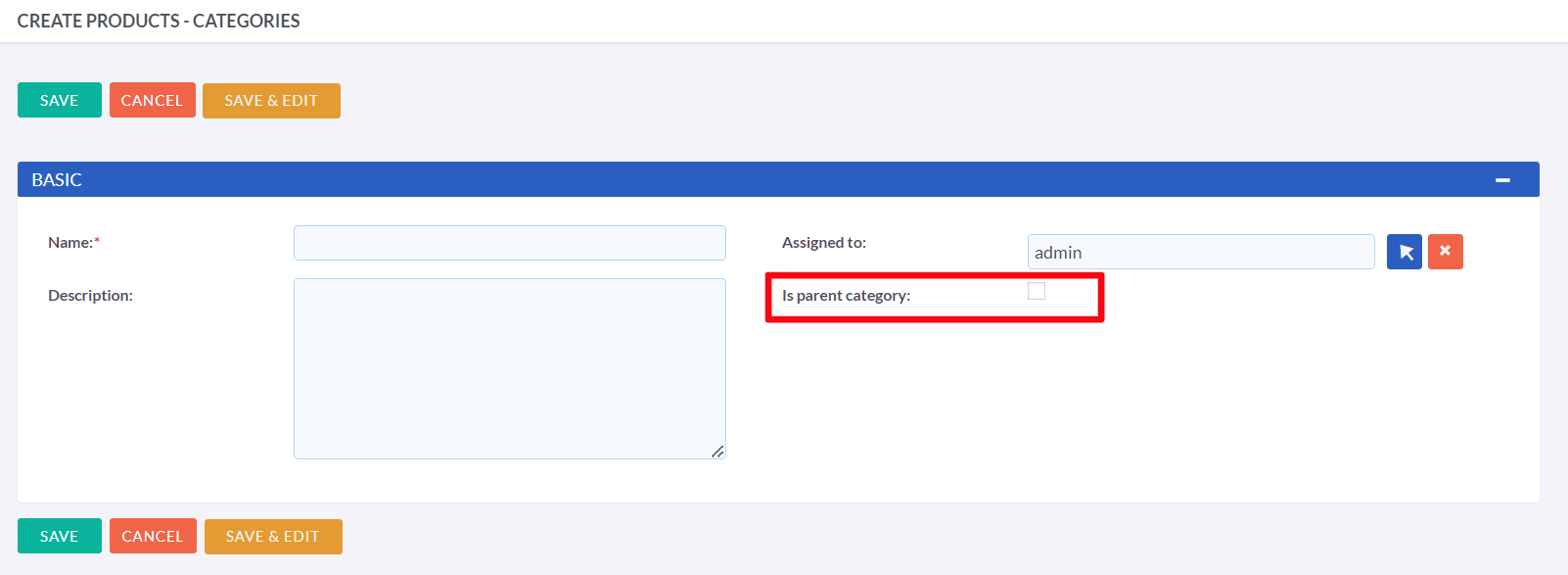
The Parent Category field in the Product Categories module is a relationship field that links to another Product Categories record. When the 'Is Parent Category' field is selected, it indicates that the category is the highest level in the hierarchy. If a category is marked as a parent category, users will not be able to select another parent category using the related field.
PDF Templates
Create PDF Template
Generating PDF documents from various modules is possible in BostelCRM. However, prior to generating PDF documents, users must create a PDF template.
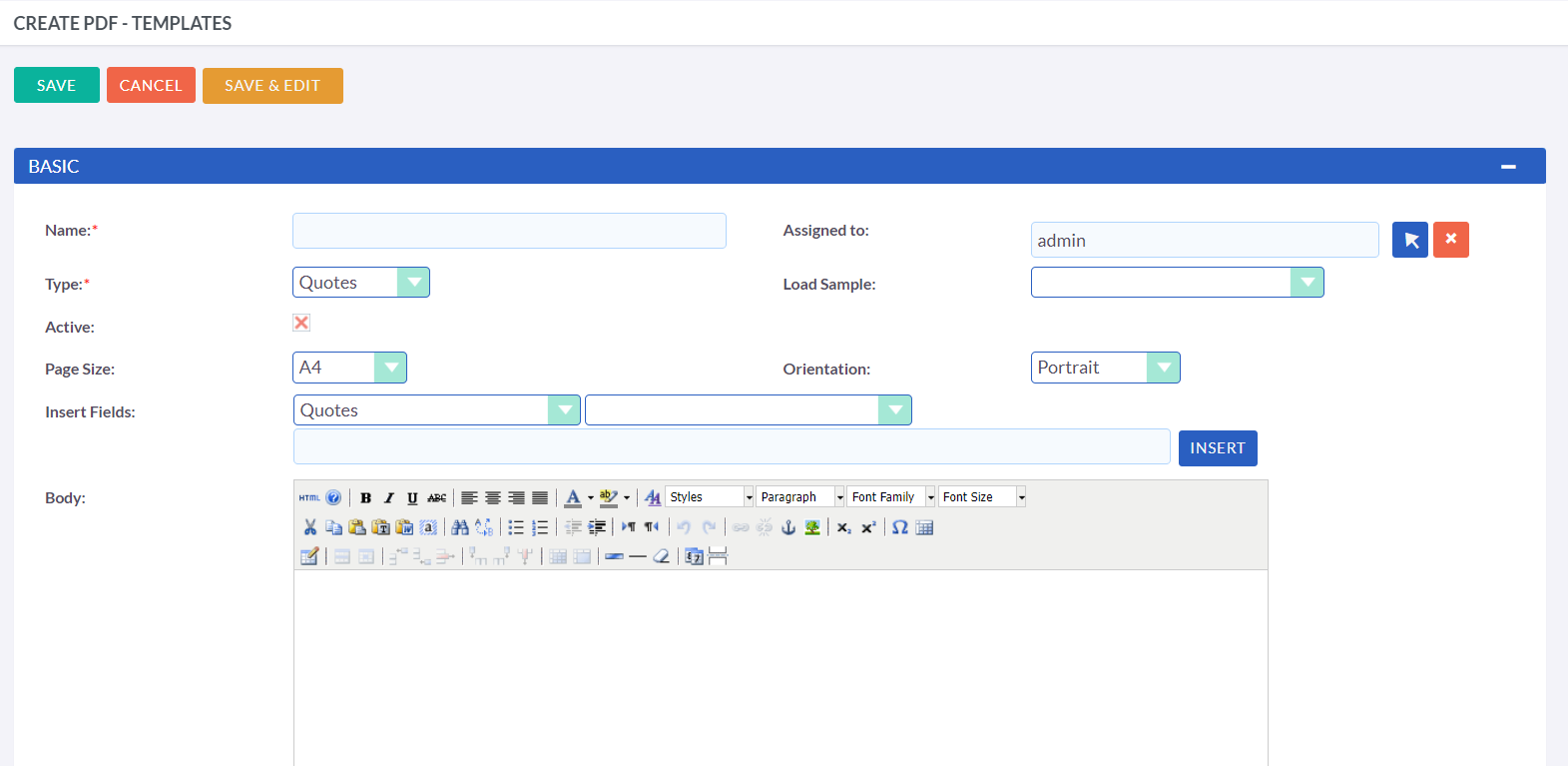
The module for creating PDF templates in BostelCRM features a What You
See Is What You Get (WYSIWYG) interface, which allows users to create
dynamic PDF templates. When creating a PDF template, users are required
to select a type, which represents the module they are building the PDF
template for. The default module options available for selection include
Quotes, Invoices, Contacts, and Leads.
To add fields into the body of the template, users need to first choose
a module. This module can either be the same as the previously selected
Type module, or it can be a related module. Users can select the module
by using the first dropdown in the 'Insert Fields' row.
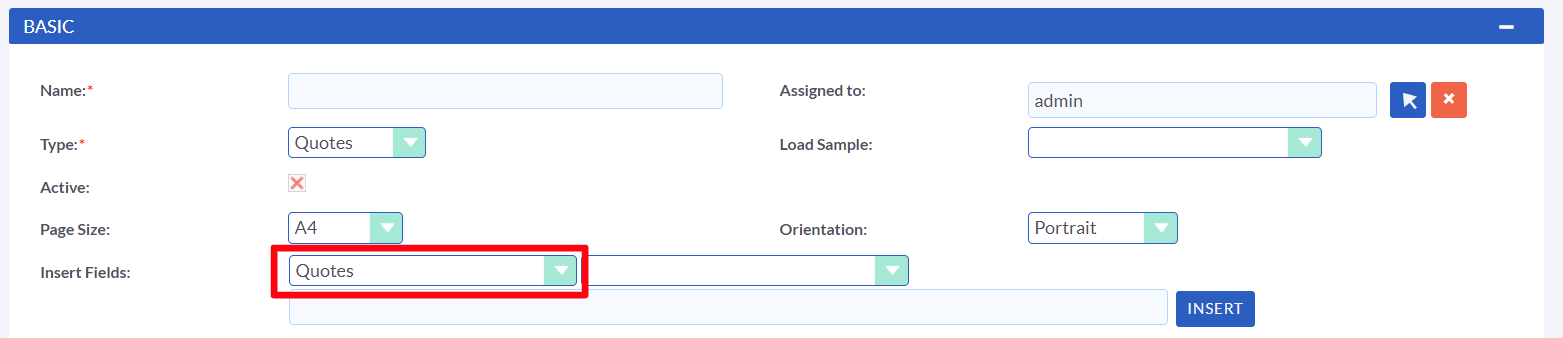
Selecting a module will populate the second dropdown with all the fields available in that module. After choosing the desired field, its variable name will appear in the text field. Click on "Insert" to add the field to the template's body. Enabling the "Active" checkbox will allow users to generate PDFs using this template while disabling it will prevent them from doing so.
Loading Samples
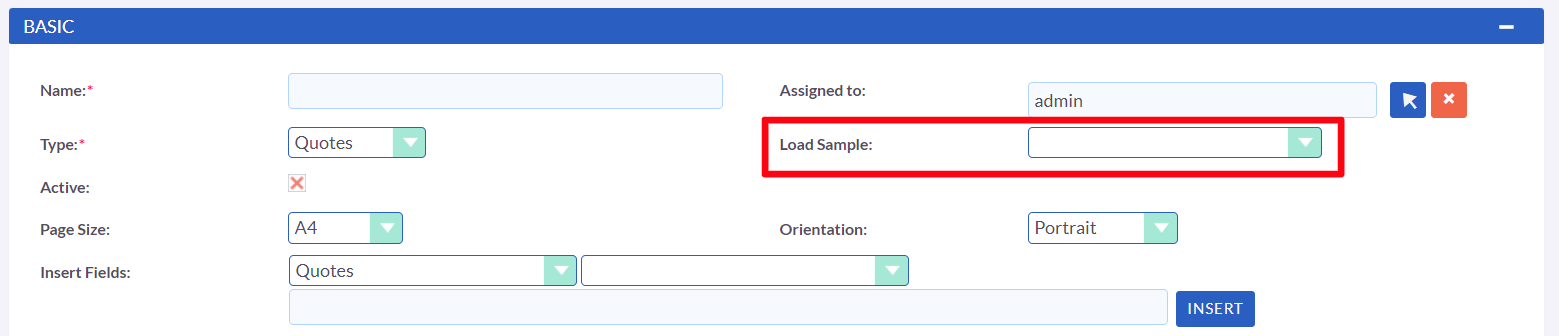
The module includes various pre-designed PDF templates that can assist you in creating your own. To access them, simply choose the relevant template from the "Load Sample" dropdown list.
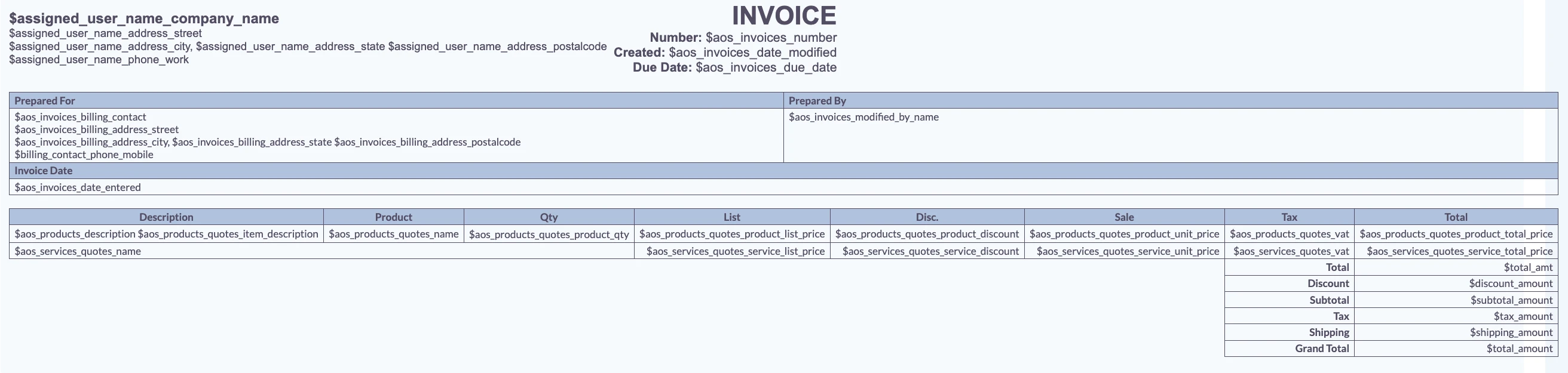
Line Items

If you are using a sample to generate a template for Quotes or Invoices, the Line Items will be presented in a table format. You have the option to modify the fields within this table, and add or delete columns as needed. However, please be aware that if you are starting a template from scratch, you will need to format the Line Items section as a table yourself.
Margins

You have the option to specify the width of the margin for the PDF output at the bottom of the PDF Template Edit View.
Header & Footer
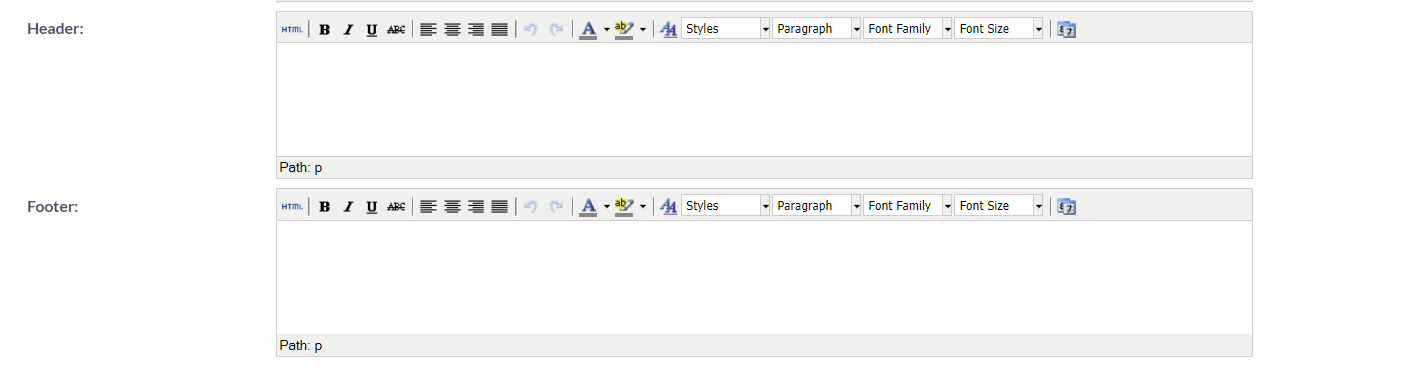
In the PDF Templates Edit View, you also have the ability to define a Header and a Footer for your templates. The Header and Footer can be created by utilizing the respective text areas located beneath the Body text area.
Generate PDF
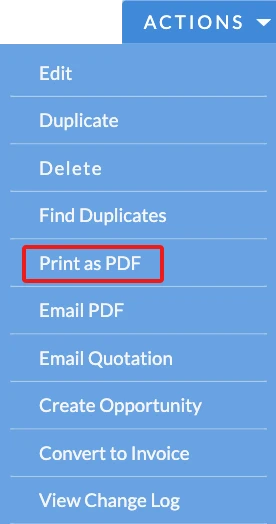
The functionality to "Print as PDF" or "Email PDF" enables you to
create PDF documents for Quotes, Invoices, Contacts, and Leads.
By clicking on the "Print as PDF" button located in the Actions tab of
these modules' Detail View, a pop-up will appear, requesting you to
choose a template.
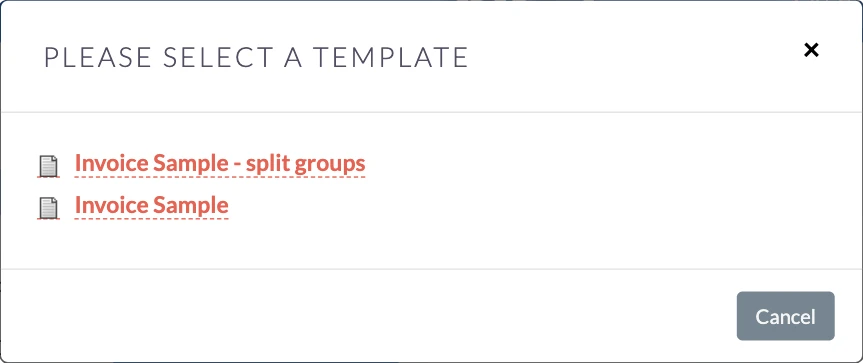
The pop-up for selecting a template will display all active templates that have the same Type as the module of the current record. Selecting a template from the list will initiate the generation of a PDF document, which will contain data populated from the record and any related records. The steps for generating PDFs for Quotes and Invoices are outlined in their respective sections.