Tasks
BostelCRM can enhance Users' productivity by providing a means to document, associate, and delegate Tasks and action items. To access the Tasks module, click on the Module List menu in the top navigation bar or select the Tasks button on the Bottom Navigation menu.
Tasks Actions
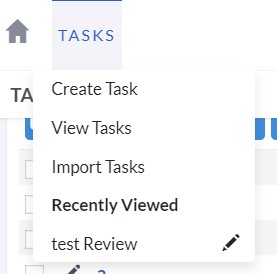
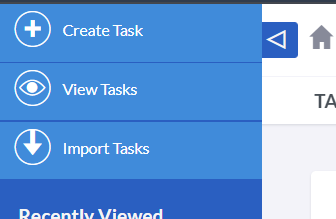
Depending on the screen or device size, you can access the Tasks actions either from the Tasks module menu dropdown or via the Sidebar.
-
Create Task
To create a new Task record, you can open a new form in Edit View.
-
View Tasks
By clicking on it, you will be redirected to the List View for the Tasks module, which enables you to search and display Task records.
Managing Taks
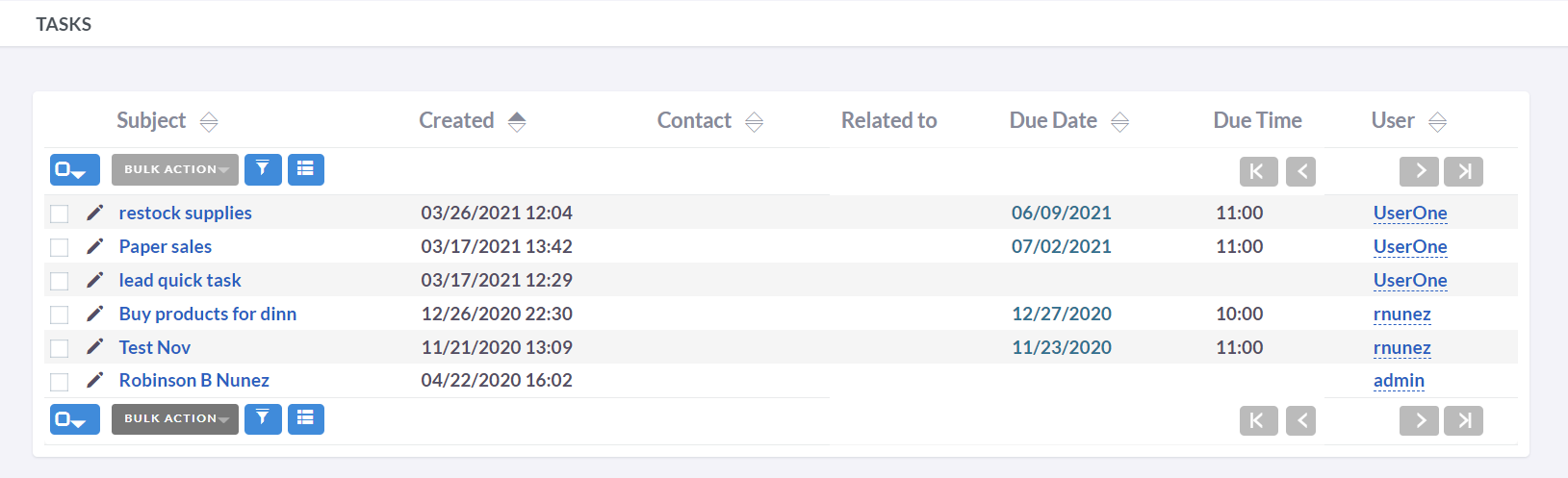
- To sort Task records in the List View, simply click on any column title that is sortable, and the records will be sorted in either ascending or descending order accordingly.
- If you need to search for a specific task, refer to the Search section of this user guide.
- To access the details of a task, click on its subject in the List View. This will open the task record in Detail View.
- If you want to edit a task's details, you have two options: in Detail View, click Edit on the Actions menu, or click the pencil/edit button in List View, make the necessary changes, and click Save.
- If you need to create a duplicate of a task, go to Detail View and click Duplicate on the Actions menu. Then make the desired modifications to the new record and save it.
- To mark a task as completed, open its detail view and click Close on the Actions menu. This will change the task status to Completed. Alternatively, you can click Close and Create New to close the current task and create a new one with the same subject in Edit View.
- To remove a task from the list, open its Detail View and select Delete from the Actions menu.