Transactions
BostelCRM provides a comprehensive Transactions module to record, track, and manage all financial transactions. You can document transaction details, associate them with related records, and review statuses. To access the Transactions module, click on the Module List menu in the top navigation bar.
Transactions Actions
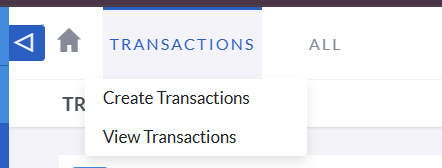
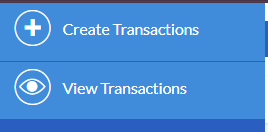
Depending on your screen size, you can access Transaction actions from the module dropdown menu or via the sidebar shortcuts.
-
Create Transactions
To record a new Transaction, open the Edit View by clicking the "+ New" button or selecting "Create Transactions" in the actions menu.
-
View Transactions
Click on "View Transactions" to open the List View, where you can search, filter, and sort transaction records.
Managing Transactions
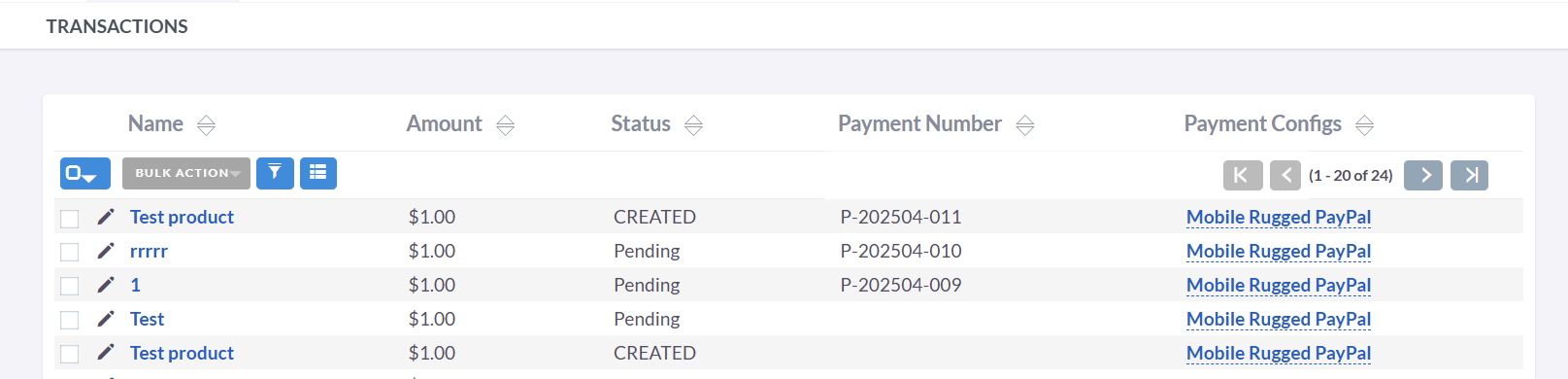
- Click any sortable column header in List View to sort transactions in ascending or descending order.
- Use the search bar to find transactions by transaction number, name, or related entities.
- To see full details of a transaction, click its name in List View to open the Detail View.
- In Detail View, click "Edit" to update transaction information. Alternatively, use the pencil icon in List View.
- To create a duplicate transaction, open Detail View and select "Duplicate" from the actions menu, then modify and save.
- To change the transaction status (e.g., mark as Paid or Pending), open Detail View and use the status dropdown, then save your changes.
- To remove a transaction record, select "Delete" from the Detail View actions menu.
POS
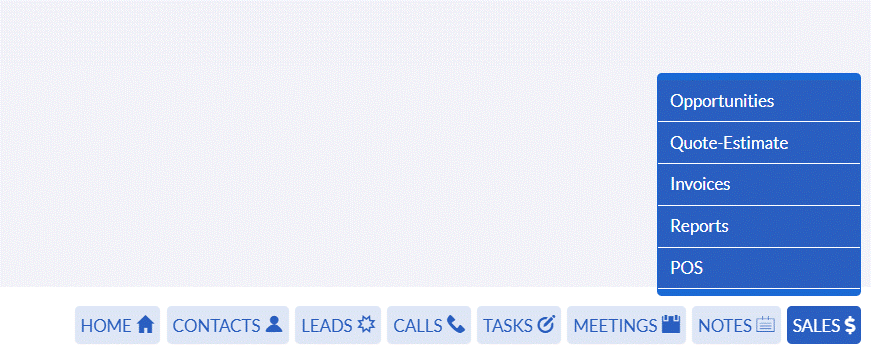
When you click on create transactions, you will be redirected to the POS page. The POS page is where you can create a transaction. Alternatively, you can click on the "Sales" button in the bottom-right corner and choose POS to navigate there.
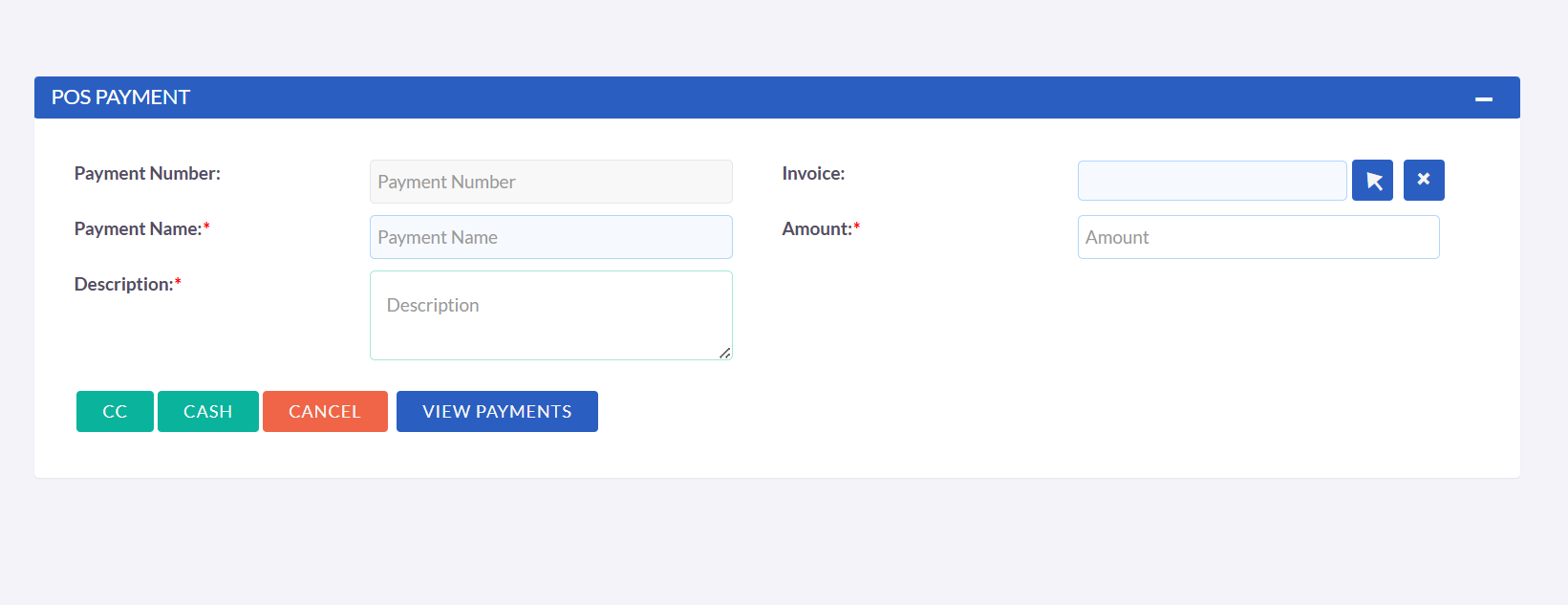
Created Payment
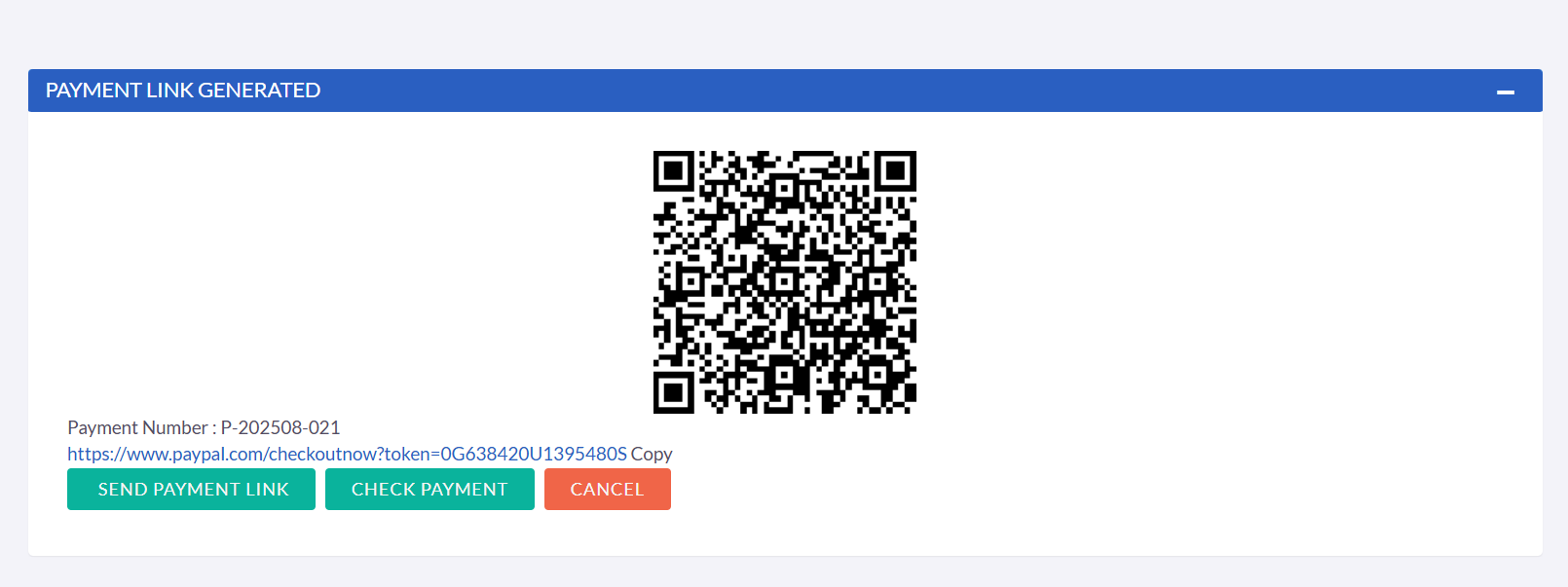
When you click on CC, you will be redirected to this page where you can view the payment link and QR code.
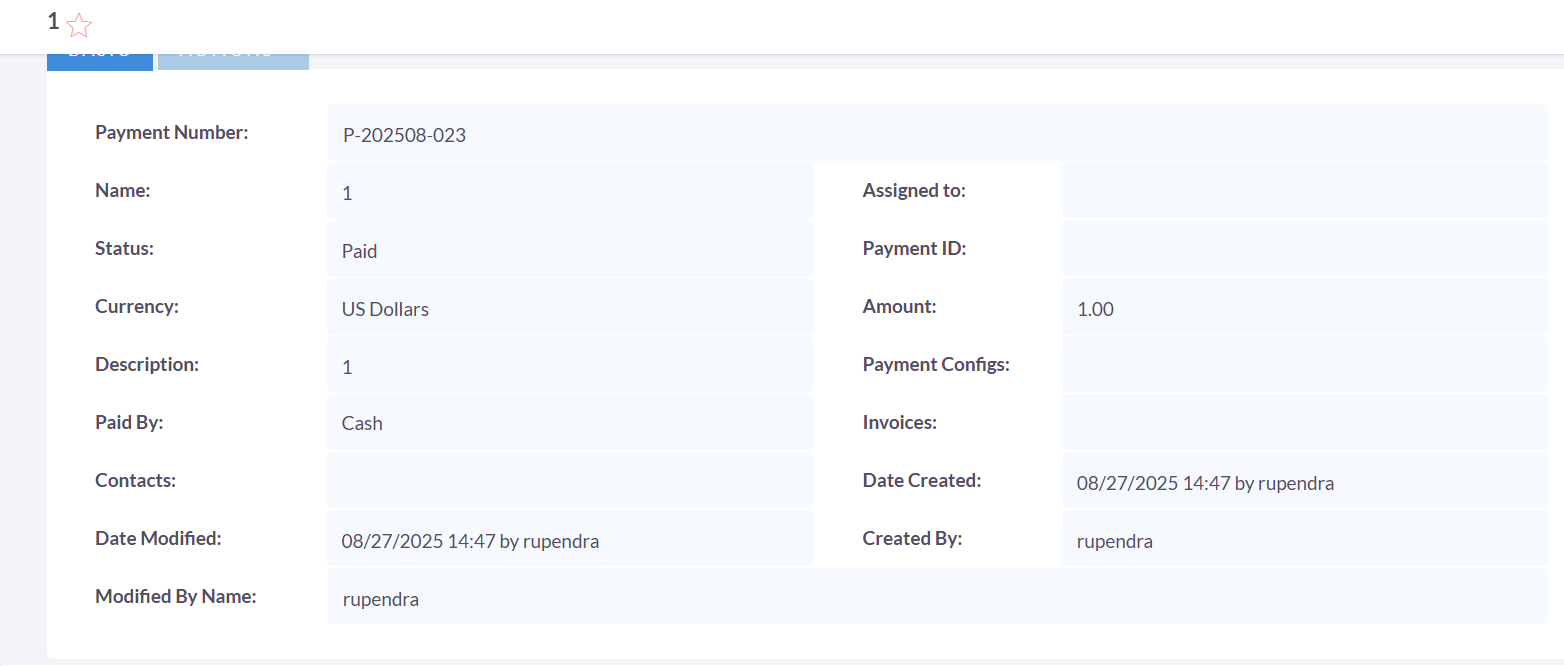
When you click on Case, you will be redirected to the transaction page where you can view the case details and take payment.
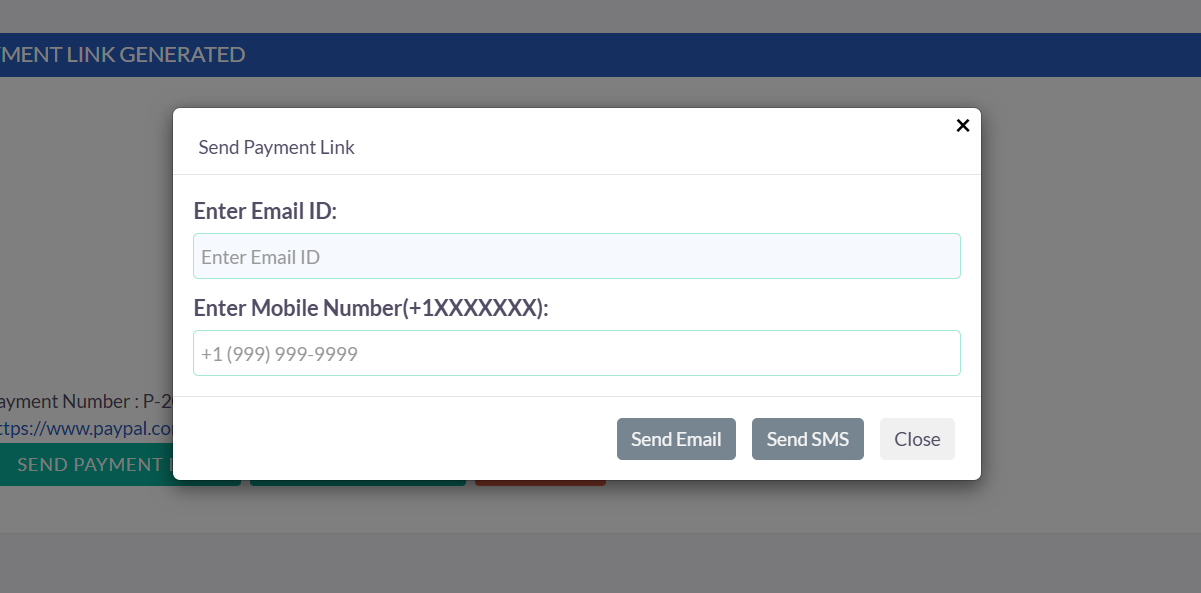
Send Payment Link
When you click on Send Payment Link, a popup will appear where you can send the payment link via email or phone.