Managing Profile
This is the section where you can oversee and manage your profile. The primary sections of this feature include:
- User Profile Tab
- Password Tab
- Advanced Tab
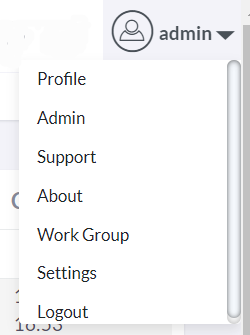
Once you log in to the system, you'll have access to numerous configuration options. To view or modify your preferences, simply click on your user name located on the top right of the navigation menu.
User Profile Tab
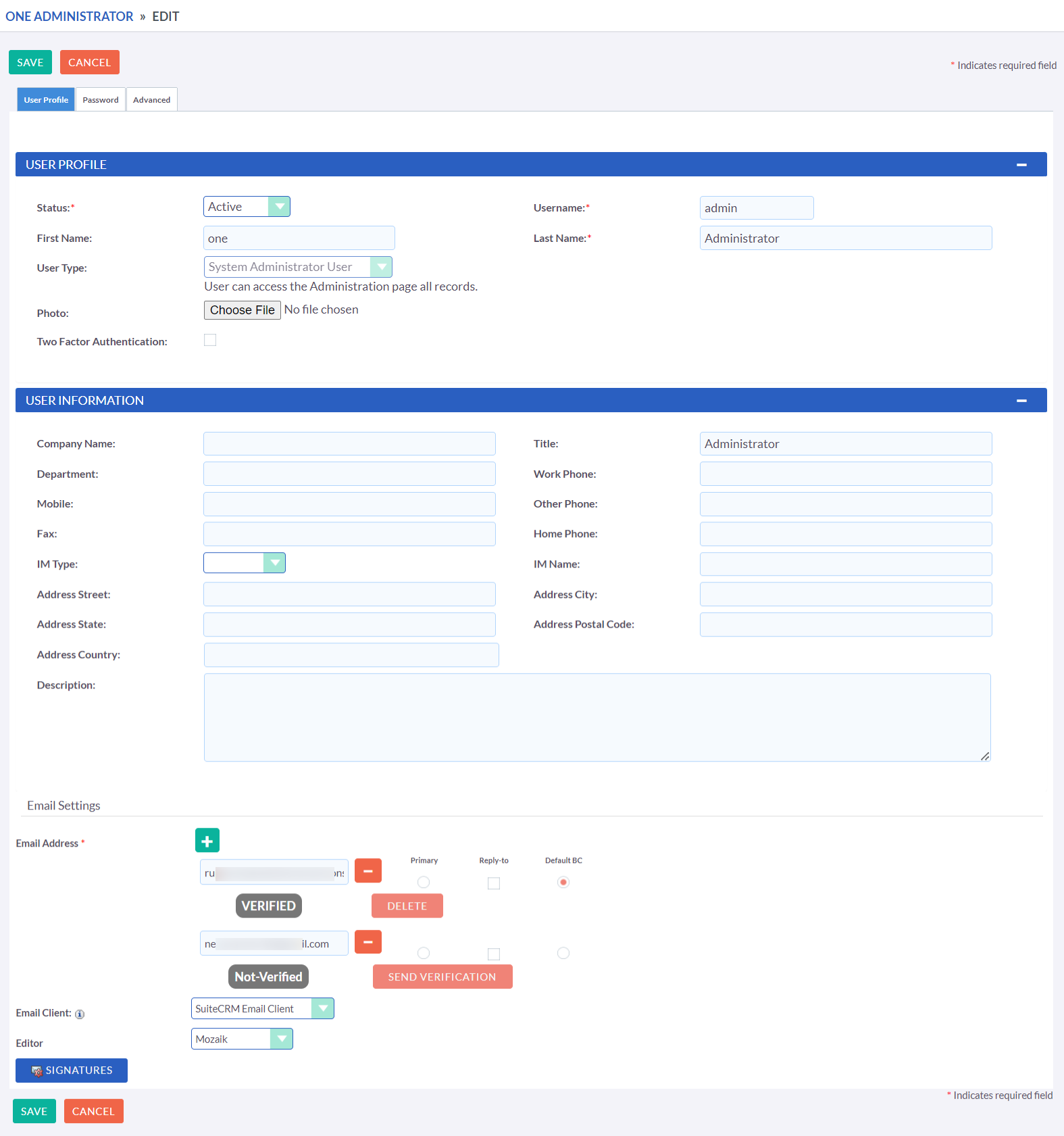
Upon clicking to access your preferences, you'll be directed to the 'User Profile' tab, which provides a summary of your credentials, such as Username, First Name, Last Name, Title, and more. This tab enables you to edit, update, and even add a profile picture to your information.
Password Tab
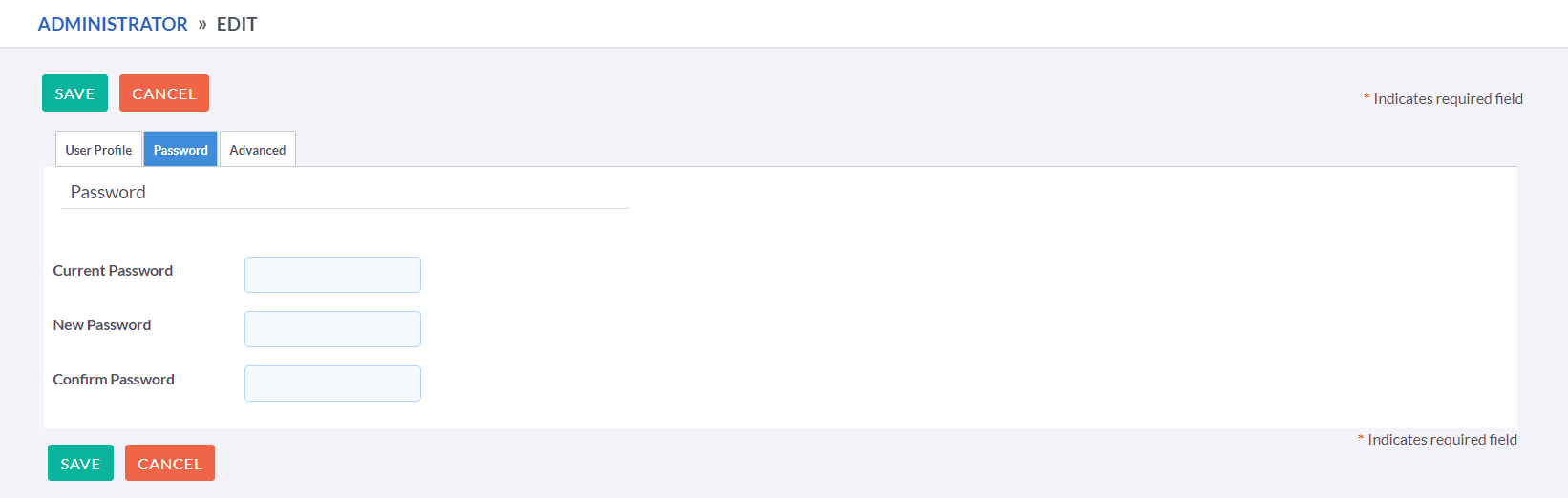
Clicking on the 'Password' tab will navigate you to allow you to change your user account password. To change your password, enter your current password then specify a new password and confirm the new password. It is recommended that passwords are secure. The recommended minimum requirement is one upper case character, one lower case character, one numerical character and a minimum password length of 8 characters.
In the event that you've forgotten your password and cannot log in, you
can utilize the password recovery feature explained in the Getting
Started section of this User Guide.
Advanced Tab
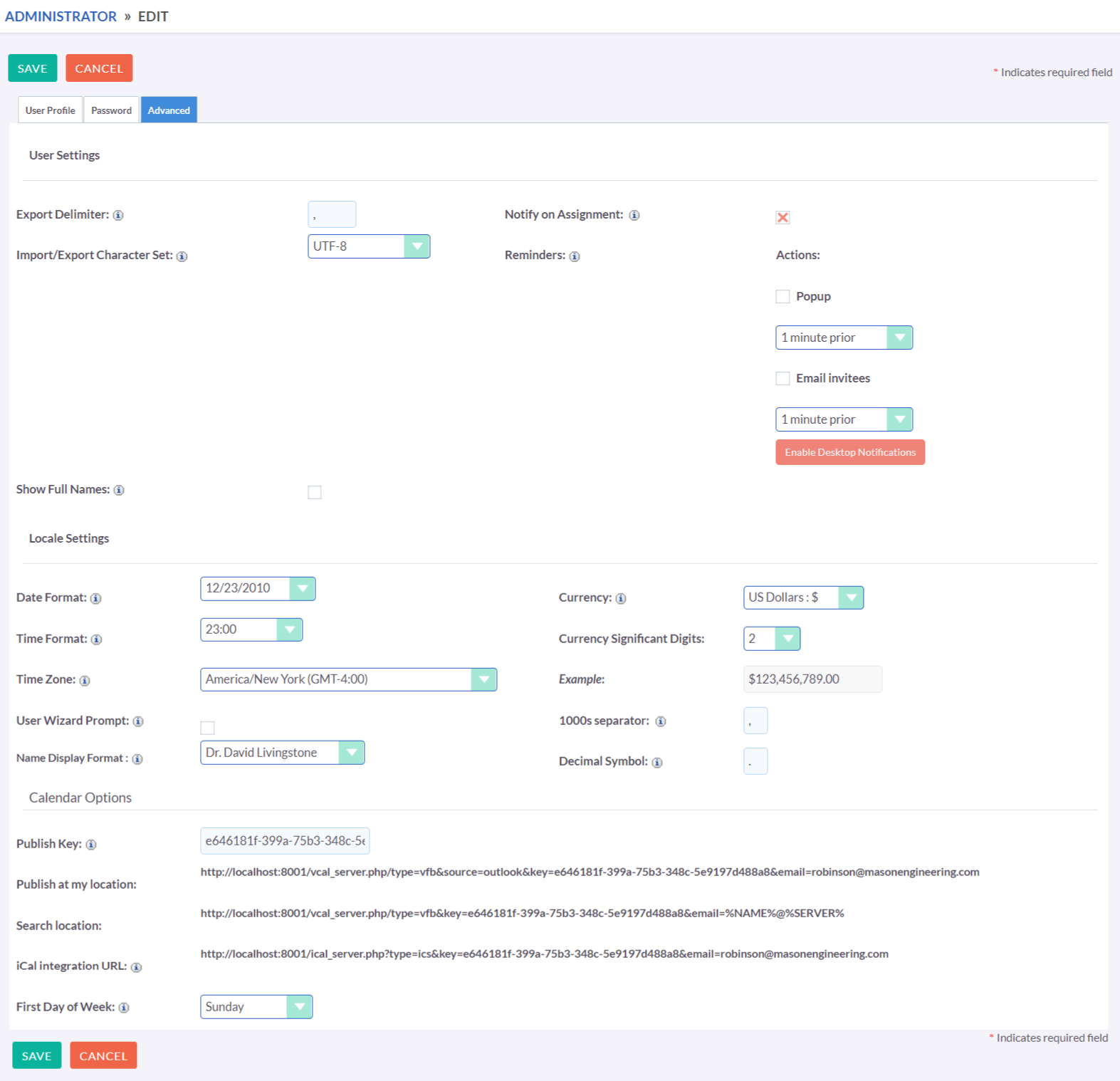
The Advanced tab offers you the capability to modify general preferences, such as notification settings, time zone, and display formats for date, time, and name.
Email Signature
To manage your email signature, follow the steps below:
-
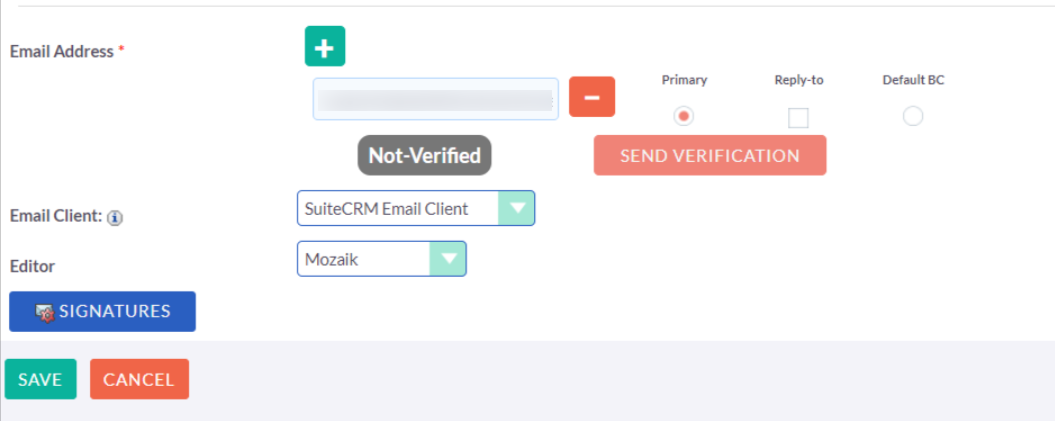
Add Email:
Enter the email address you wish to add and click on the button to save the information.
-
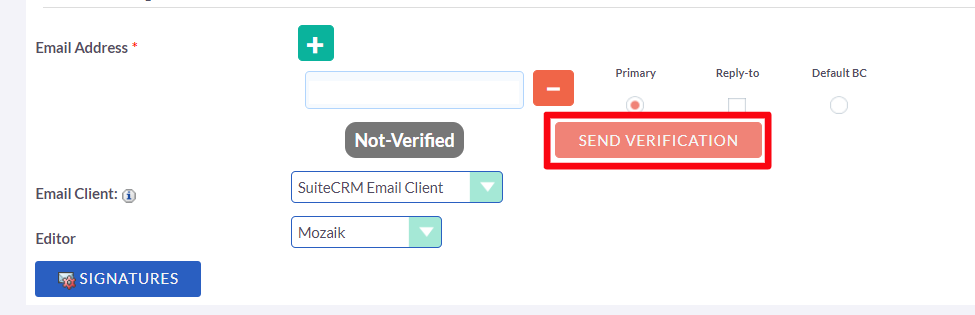
Send Verification:
Click on the button to send a verification email to the specified address.
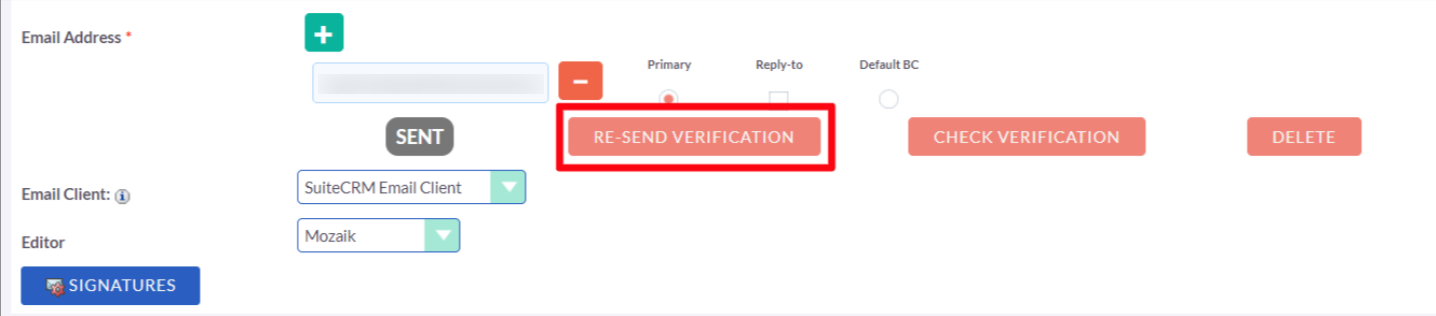
- Resend Verification:
If the initial verification email was not received, you can click on the button to resend the verification email.
- Accept Signature: The given email will receive an email for accepting the signature. Please follow the instructions in that email to confirm.
-
Verified Signature:
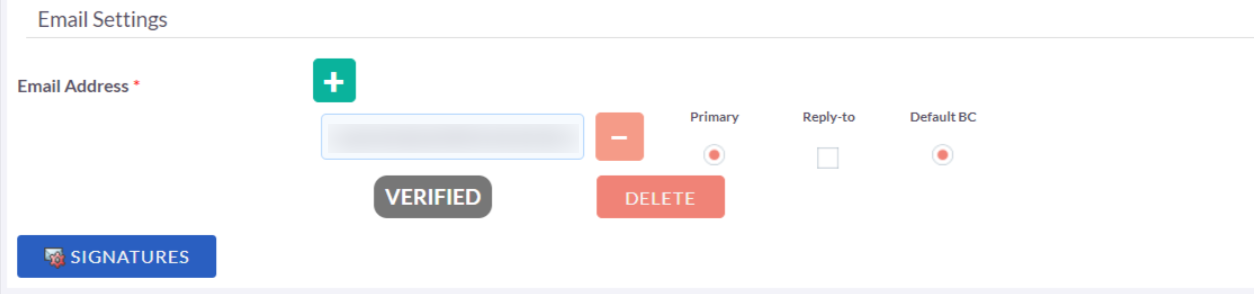
After verification, the signature will look like this. You can also delete it by clicking on the delete button.
-
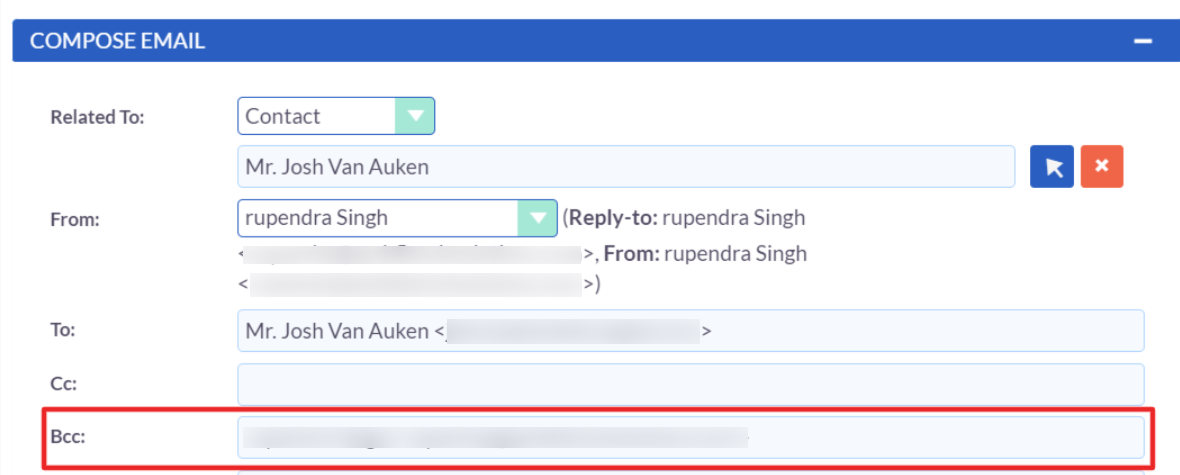
Default BC:
Check this option to automatically add the specified email address to the BC field in every email you compose.